WWDC is in June and new iOS is coming. I know I’ll want to upgrade to try it. But new systems often bring issues: apps lag or crash. You go from excitement to frustration to regret.
To enjoy new versions while being able to roll back, you need a backup. I updated an old guide for downgrading iOS 12 beta to 11.4 with current iOS/macOS steps, though the process is similar.
Backup
- Connect your phone to your computer and open Finder.
- Click Back Up.
Downgrade and restore
Downgrading is straightforward:
- Connect your phone to your computer and open Finder.
- Hold Power + Volume Up for a few seconds to power off.
- Quickly press Volume Up, quickly press Volume Down, then long‑press Power for about 10 seconds until you see the connect‑to‑computer icon. Release.
- In Finder, click Restore to roll back to the latest stable version.
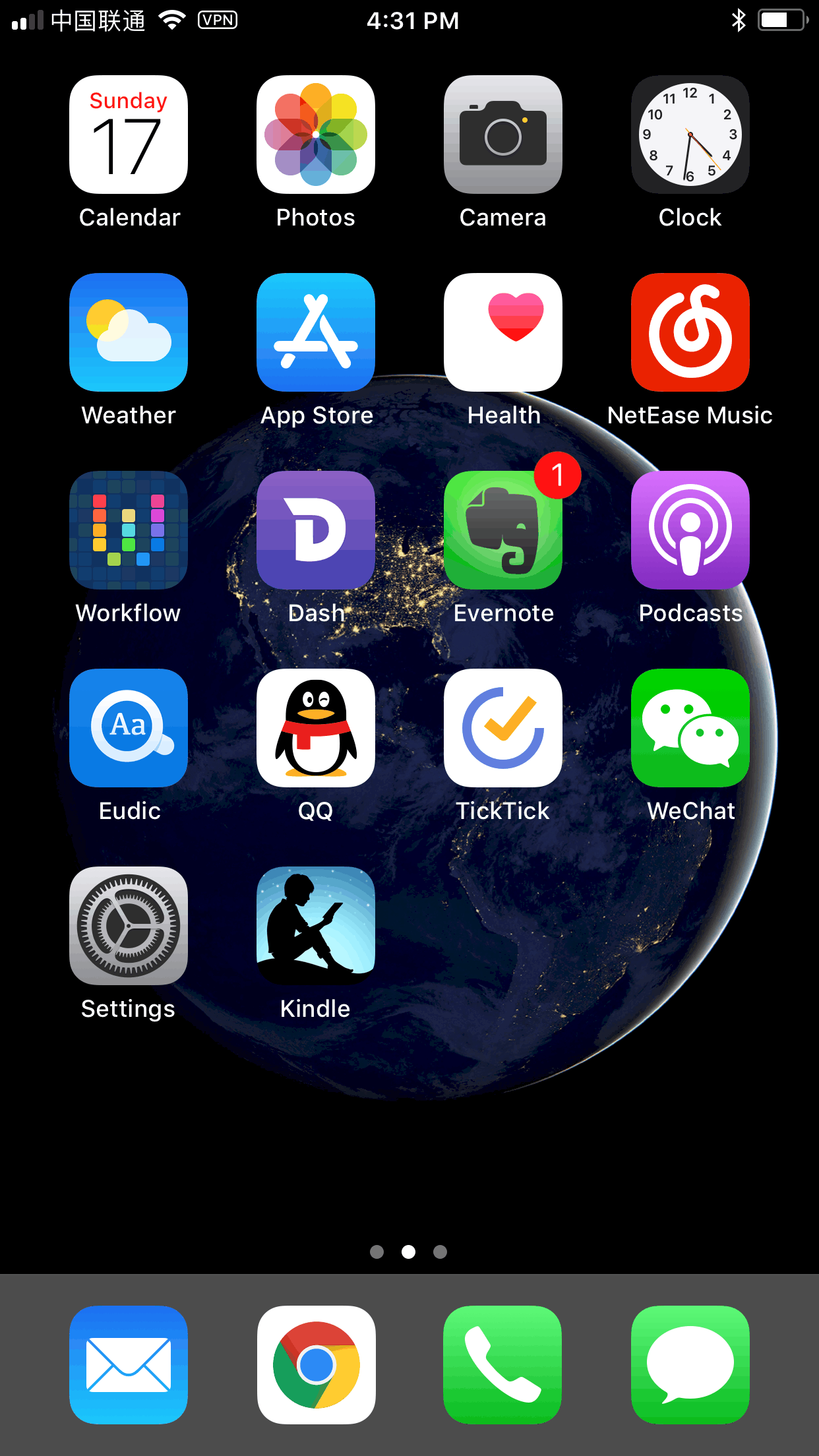
After about 30 minutes, the phone returned to iOS 11.4. Here is a clean home screen:
Painful lessons
- Don’t use a primary device for beta testing.
- Before major upgrades, back up on your computer. If you need to downgrade without a backup, you lose data.