I got the X1 before the New Year, but due to account issues, it sat unused for 2 months - so frustrating! After the holidays, customer service reinstalled the system, and I finally got it in my hands recently. Since my main machine is still a Mac, this machine inevitably serves as my backup.
After playing with it lightly for a few hours, I’ll record my operations and thoughts here.
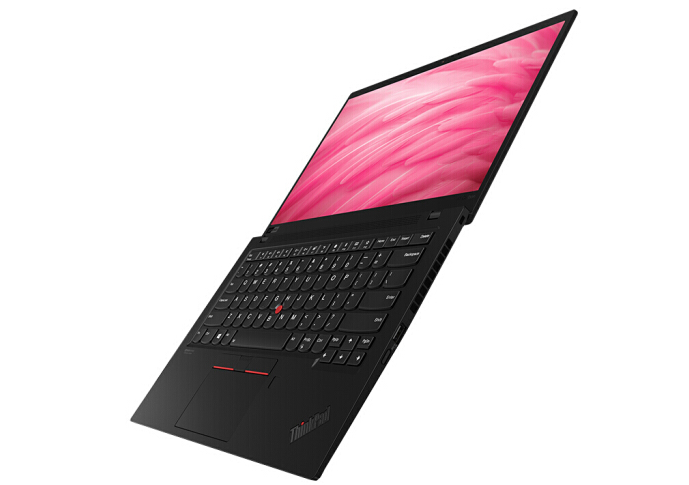
Note: The configuration I got is 7th generation + i7 + 16GB + 2TB, top configuration. X1 currently supports a maximum of 16GB memory, developers please take note
X1’s Hardware Build Quality
Having extensively used MBPs, from the 2015 13" -> 15" to the current 16", and lightly used the Surface Laptop, facing the X1’s appearance, my subjective feeling isn’t particularly amazed after all, we've seen the world, right.
But it’s absolutely high-value and can compete with MBP and Surface.
Let me list what I consider the pros and cons
Pros
- Good looks - appearance is justice
- Lightweight, can compete with Surface Laptop
- Rich ports, so you don’t have to buy a new laptop and invest in a bunch of additional cables. Apple has always been terrible at this and never been surpassed
- 180-degree flip - cool
- Fingerprint + face recognition, quick login
Cons
- Battery life still can’t compete with Mac
- Software ecosystem is still lacking, can’t help it, same with Surface
In summary, a beautiful & excellent laptop
Software Level Polishing
After getting Windows, I started quickly installing a series of software to improve productivity. I recommend this software list where you can find good software to try.
Must-Install Software
The following are several software I personally need:
- Evernote
- Chrome
- Clash
- Listary
- Sogou Pinyin Input Method
- Snipaste
- Visual Studio Code
Actual Windows usage involves many personalized settings, which I won’t elaborate on here. My ongoing summary is here
Final Thoughts
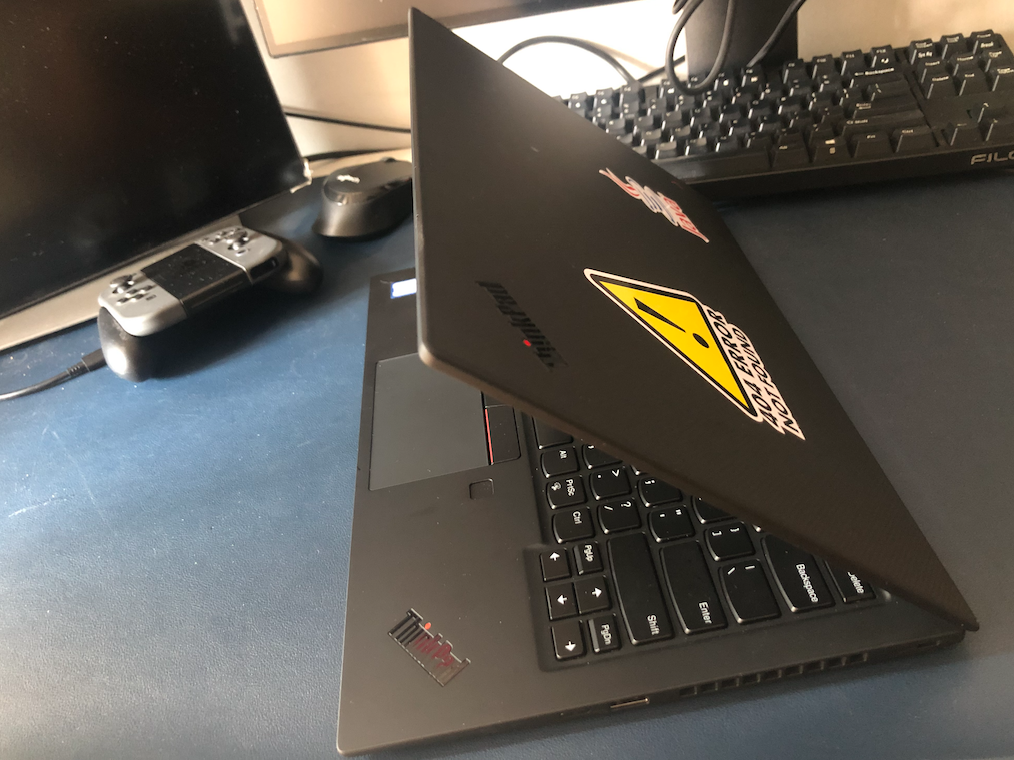
- Spent a few hours on initial configuration, currently serves as my backup machine, which is acceptable
- What’s next is to continuously fine-tune it through actual usage.