During frontend debugging, our team uses Whistle to proxy specific resources to target addresses.
Install Whistle
Install
NodeJSRecommended via NVM. Windows: nvm-windows. Others: nvm.
Install Whistle
npm install -g whistleStart Whistle
# Run in terminal
w2 start

# Check status
w2 status
Open http://127.0.0.1:8899 in a browser
HTTPS interception
To proxy HTTPS URLs, enable HTTPS:
Turn on HTTPS switches
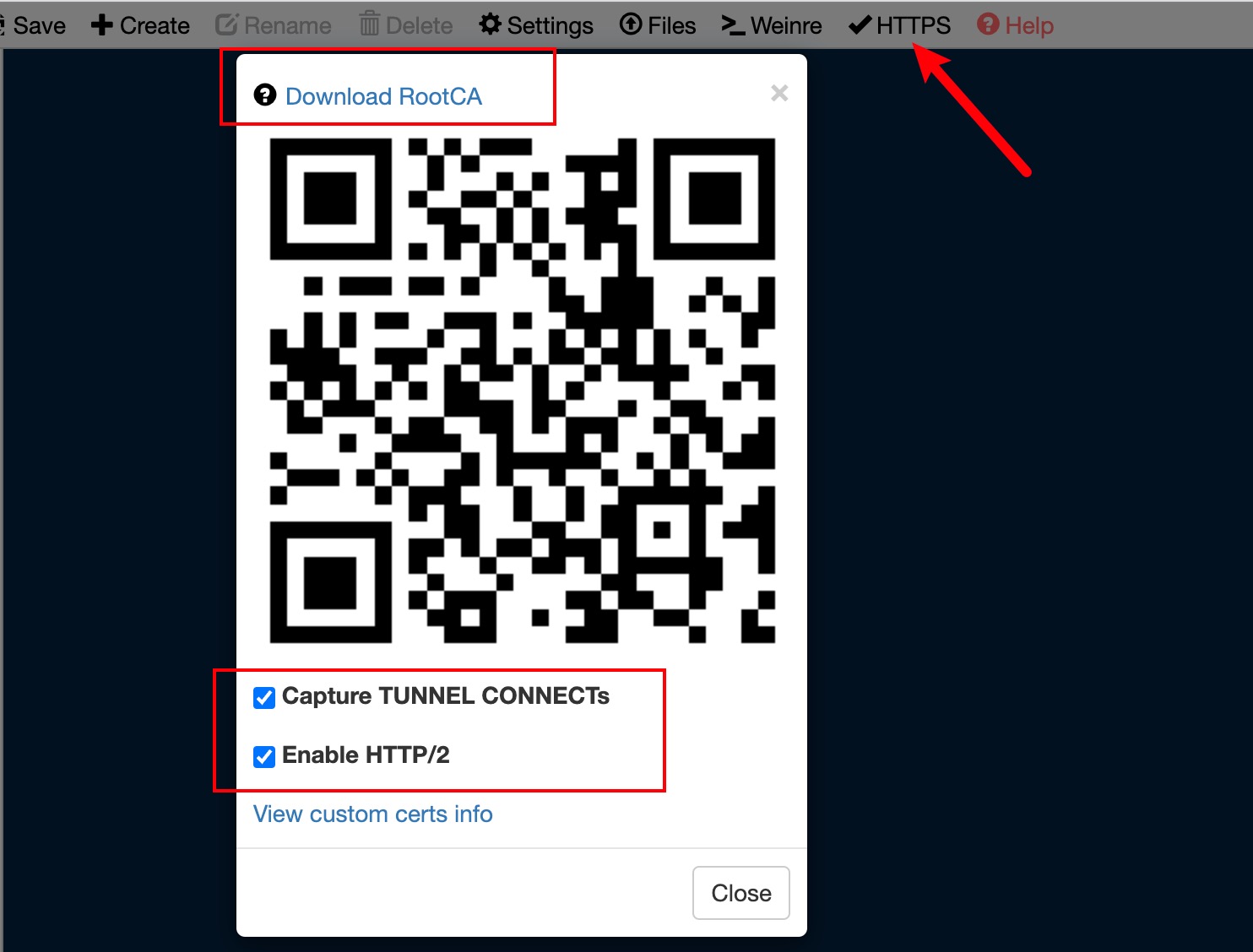
Download the root certificate and install it
Besides the popup, you can download it via http://rootca.pro if the Whistle proxy is active.
Trust the certificate in
Keychain Access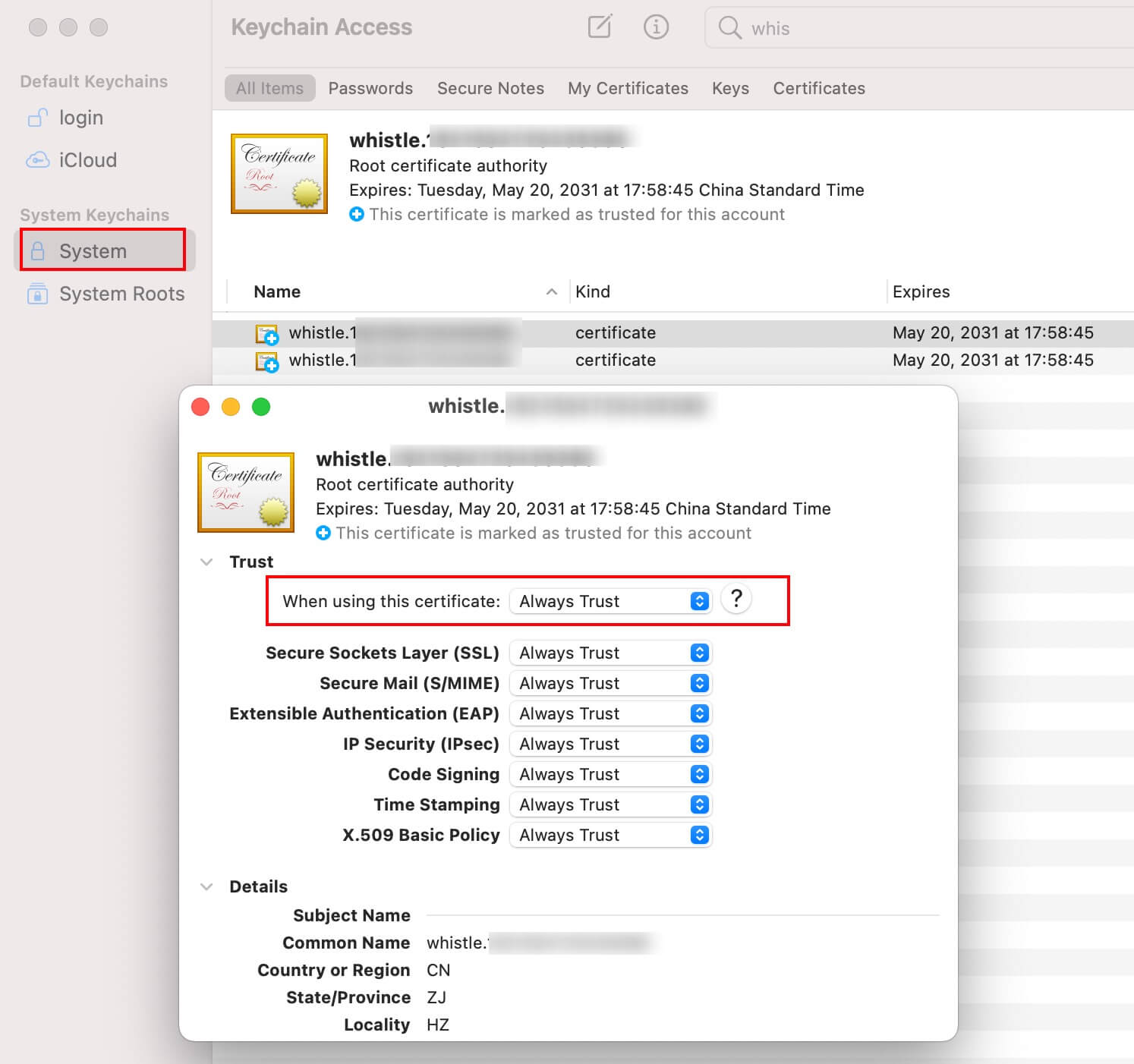
Browser extension
Install the Whistle Chrome extension
- To route browser requests through Whistle, install the extension and enable Whistle proxy
- If the extension is unavailable in your store, use SwitchyOmega
- Safari has no proxy extension; use system proxy software like Surge/Proxier
Use Whistle as system proxy
I wrapped a tool to set Whistle as the system proxy to support apps like Safari.
Run the following commands as needed; success output means it’s set.
# Set system proxy
npx @stacker/whistle.globalproxy set

# Custom host/port
npx @stacker/whistle.globalproxy set --port 8899 --host 127.0.0.1

# Clear system proxy
npx @stacker/whistle.globalproxy clear
Note: system proxy is unique. If you already have one, this will override it.
Verify proxy success
There are many ways: visit a site and check the certificate shows Whistle; or check Whistle’s Network tab for entries.
After these steps, you can proxy all browser requests through Whistle.
SOCKS proxy
If you only need to proxy HTTP sites, configure Whistle HTTP proxy. If you need SOCKS, enable SocksServer. For browser extensions, requests are HTTP/WebSocket, so HTTP is enough.

Whistle proxy
Whistle is just a proxy service. It does not take over system or app proxies by default, so you can mix and match. I previously wrote Surge + Whistle, but Surge has a learning curve. If you only need browser proxy, the extension is enough. If you want other apps (terminal, etc.) to use Whistle, you need additional setup (e.g., shell proxy env vars).
Mobile proxy
Sometimes you need a phone to access a site and capture traffic on a PC. Solution: connect the phone to the PC’s Whistle proxy.
- Set proxy on phone network.
- Scan to download Whistle cert, install and trust it.
- Visit the site and confirm requests appear in Whistle Network.
Configuration tips
Modify request UA header
Add rule:
https://1991421.cn ua://{browser_ie10_ua}
Configure browser_ie10_ua in values:
Mozilla/4.0 (compatible; MSIE 7.0; Windows NT 6.1; WOW64; Trident/6.0; SLCC2; .NET CLR 2.0.50727; .NET CLR 3.5.30729; .NET CLR 3.0.30729; InfoPath.2; .NET4.0C; .NET4.0E)
Modify window.navigator.userAgent
Some logic like compatibility pages can be simulated by programmatically changing UA.
Add rule:
https://1991421.cn jsPrepend://{ie11_js_ua}
Configure ie11_js_ua in values:
window.navigator.__defineGetter__('userAgent', function(){
    return "Mozilla/5.0 (Windows NT 10.0; WOW64; Trident/7.0; .NET4.0C; .NET4.0E; SE 2.X MetaSr 1.0; rv:11.0) like Gecko"; // customized user agent
});
Remote Address
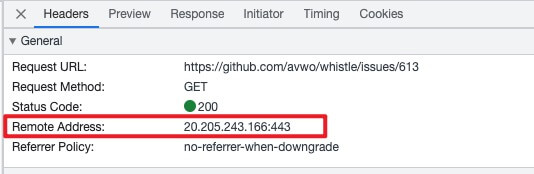
After routing through Whistle, the remote address shows as Remote Address: [::1]:8899. To see the original Remote Address, add this rule:
* resHeaders://`x-remote-address=${serverIp}`