We recently had kids over at home, and I wanted to play age‑appropriate videos on the TV. I discovered YouTube’s dedicated Kids section and, after some trial and error, found it quite good. Here’s how to use YouTube Kids.
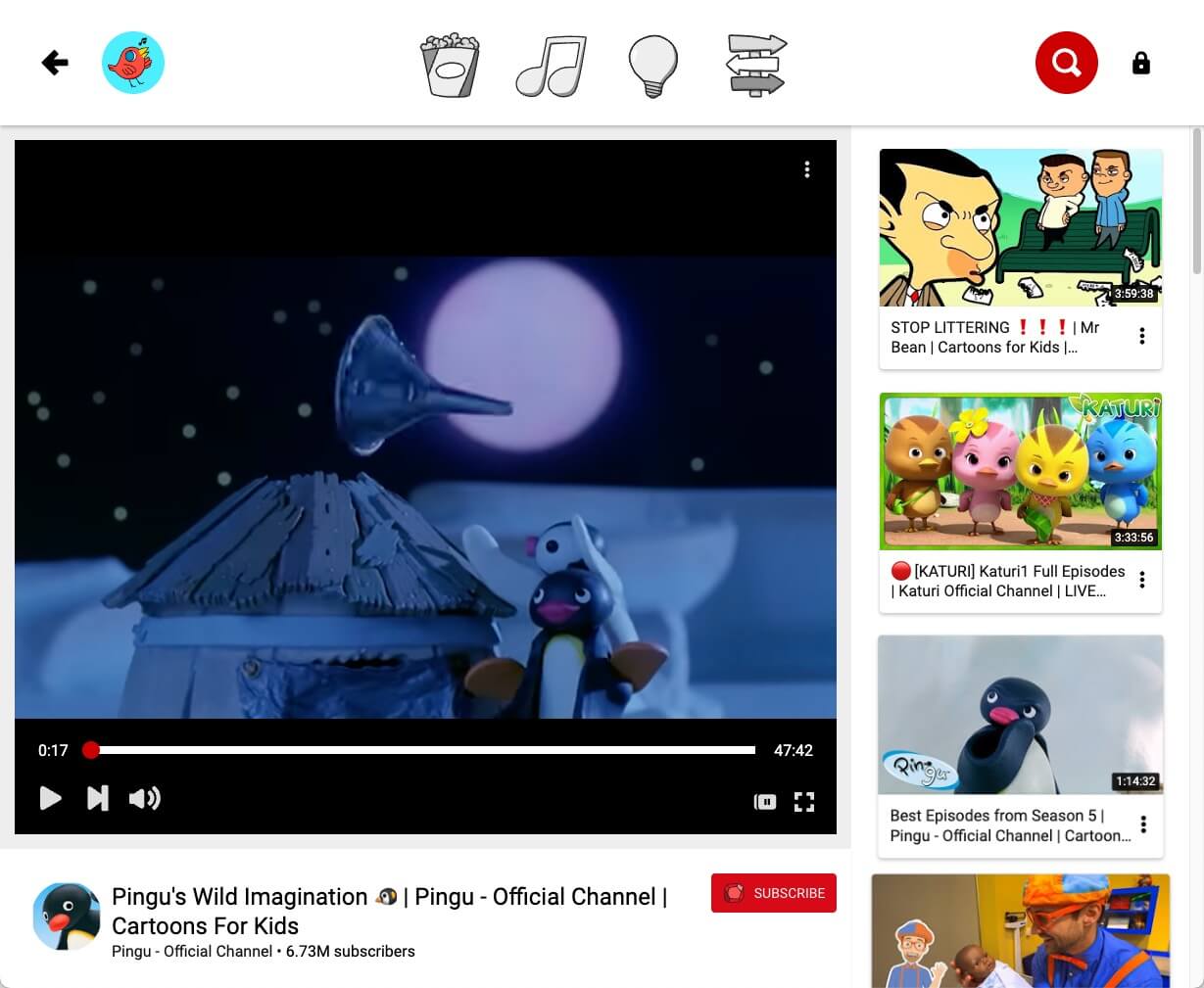
Introduction
YouTube Kids is a free app designed for children, providing a safer environment for browsing YouTube videos. It offers kid‑friendly content and tools for parents to control what their children watch.
Requirements
Same as YouTube:
- YouTube Kids is free; subscribers can remove ads.
- A network proxy may be needed depending on access restrictions.
Platforms
- iPhone
- Web
- Apple TV
It’s available across platforms, which is great.
Using on Apple TV (ATV)
My main use is on Apple TV.
- Download the Kids app on ATV
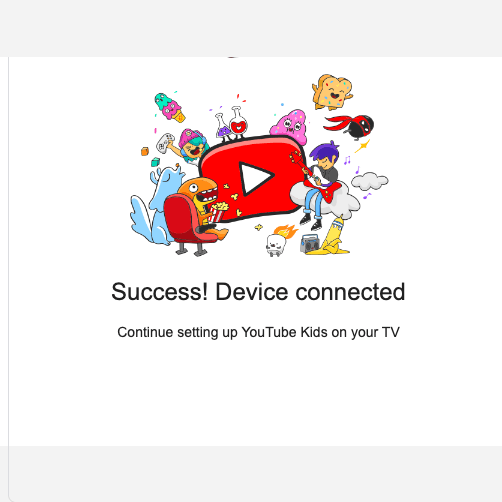
- After logging in, follow the prompts to activate and bind the device on iPhone/web
- Activation URL: https://kids.youtube.com/activate. iPhone activation didn’t work for me; the web worked. After activation, the app will prompt success.
- The parental management page lets you set age, watch time, etc.
- Web settings: https://www.youtubekids.com/
- Tap the child profile to enter their recommendations page
Drawbacks
Not all videos have subtitles. While YouTube supports auto‑generated captions, Kids may not.
Some videos with Chinese subtitles:
Final Thoughts
- YouTube Kids is pretty good overall and worth a try.
- I previously tried YouTube Music as a music option and Studio as a content management platform. Kids is another focused product under YouTube.