If you want to play your home Xbox/PS games while away, one option is remote play. Here’s how to set it up with Xbox as an example.
Setup
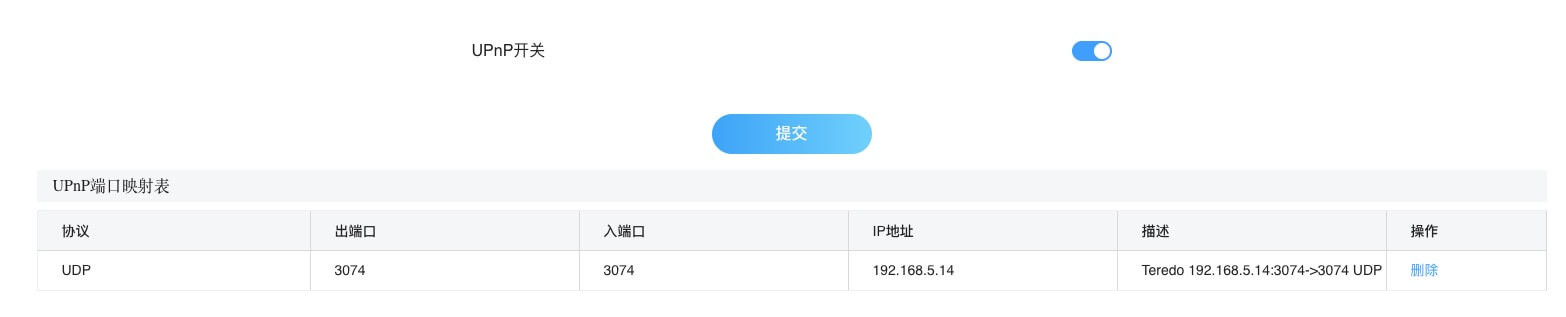
Router: enable
UPnP. DMZ is not required.Enable remote features on Xbox
Devices & connections → Remote features → Enable remote features
General → Network settings → Test NAT type should be [Open]
You should now see related entries appear under step 2.
On an external network device (e.g., iPhone), sign in to Xbox and choose your console → Remote play.

Public IP?
In testing, a public IP is not required. As long as the console has outbound internet connectivity, remote play works.
Current Issue
On mobile, if Surge proxy is enabled, remote play may fail to connect even with direct rules. Disabling Surge resolves it.
Final Thoughts
The steps are similar for PlayStation — just enable remote features and you’re set.