I learned about the tag’s custom target attribute during the technical weekly meeting, and here is my note.
MDN Specification
HTML target
Where to display the linked URL as the name for a browsing context (a tab, window, or <iframe>). The following keywords have special meanings for where to load the URL: _self, _blank, _parent, _top.
As stated in the specification, the above keywords are just special meanings, which means we can define custom names.
Custom Name
For example, when clicking the following link:
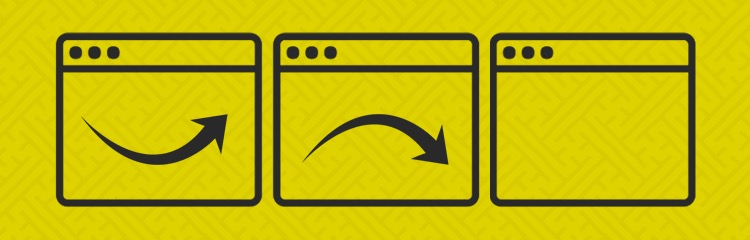
- It will open a new TAB window the first time, similar to the effect of _blank.
- Clicking again will not open a new TAB but will switch to the originally opened TAB, and the page will automatically refresh.
<a href="https://x.com/alanhe421" target="myTarget">My Twitter</a>
This illustrates the meaning of a custom target, which is to specify a custom TAB window to open and switch to the originally opened TAB window.
At the end
We can use the custom target based on our example once we understand the custom target. We need it to avoid reopening a new tab. You can use a custom target name.