macOS has many hidden tricks. Mastering them can save you a lot of time, and when others don’t know them but you do, you’ll feel like a Mac genius.

OK, let’s start. 👇
Note: In Chinese macOS, Finder is localized with a Chinese name.
Screenshots
Use Command + Shift + 4 to capture a screenshot. But did you know you can further customize it?
- After pressing Command + Shift + 4, press Space to capture a specific window.
- While dragging, hold Shift to lock the selection horizontally or vertically.
- Hold Option to resize the selection from the center.
- Press Space to toggle window capture.
Quick preview with Space
In Finder, select any file and press Space to preview it. If the format isn’t supported, you can install Quick Look plugins.
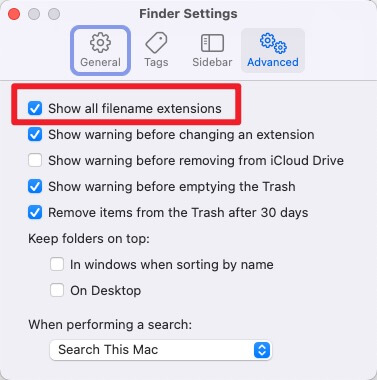
Show file extensions
In Finder, open Settings from the menu bar and enable showing file extensions.
Quick path finder
In Finder, you can quickly display the full path of a file or folder.
- Go to View > Show Path Bar to display the path at the bottom of the Finder window.
- Or press Option + Command + P to toggle the path bar.
Hidden trackpad gestures
The Mac trackpad is more powerful than you think. Try these:

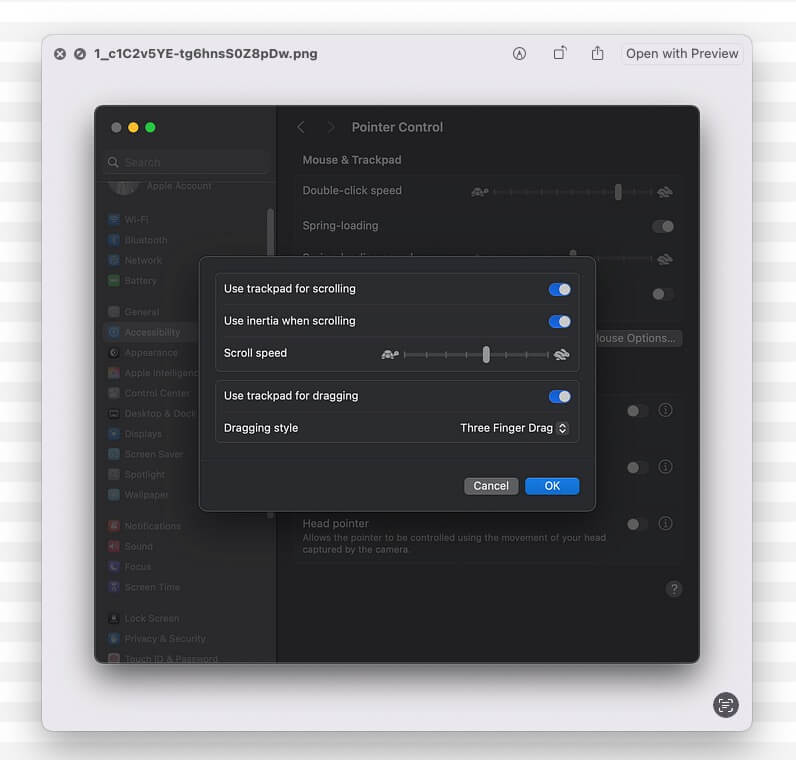
This screenshot is from the author.
- Three-finger drag: Enable it in System Settings > Accessibility > Pointer Control > Trackpad Options to move windows easily.
- Pinch to zoom: Use two fingers to zoom in/out on images or web pages.
- Force Touch Quick Look: Press firmly on a file in Finder to preview it without opening.
Customize menu bar icons
The menu bar can get cluttered, but you can reorganize it:
- Hold Command and drag icons to rearrange them.
- Drag an icon out of the menu bar to remove it.
Disk Utility features
Disk Utility does more than format drives. You can also:
- Create disk images: Go to File > New Image to create an encrypted backup of a folder.
- Repair permissions: Use First Aid to fix disk errors and permission issues.
Text replacement for faster typing
Save time by creating custom text shortcuts:
- Go to System Settings > Keyboard > Text Replacement.
- Add shortcuts like “omw” for “On my way!” or “eml” for your email address.
Hidden Terminal commands
Terminal is a gold mine for power users. Try these:
- Say: Type
say "Hello, World!"to make your Mac speak. - Caffeinate: Type
caffeinateto prevent your Mac from sleeping. - Show hidden files: Type
defaults write com.apple.finder AppleShowAllFiles YESand relaunch Finder.
Quick access to system info
Need to check your Mac’s specs?
- Click the Apple logo in the top left and choose About This Mac.
- For more details, click System Report to view everything from RAM to connected devices.
Secret emoji combos
Did you know you can combine emojis for fun or practical use?
- Use Command + Control + Space to open the emoji picker.
- Combine emojis like 🎉 + 🎂 for a birthday, or 📅 + ⏰ for reminders.
Conclusion
What other hidden macOS tricks do you know? Share them in the comments.