After owning multiple MacBooks, I’ve gone from bare screens to stick-on films and back again. Community threads reminded me how divisive this topic is, so here’s a structured look at the trade-offs and maintenance tips.
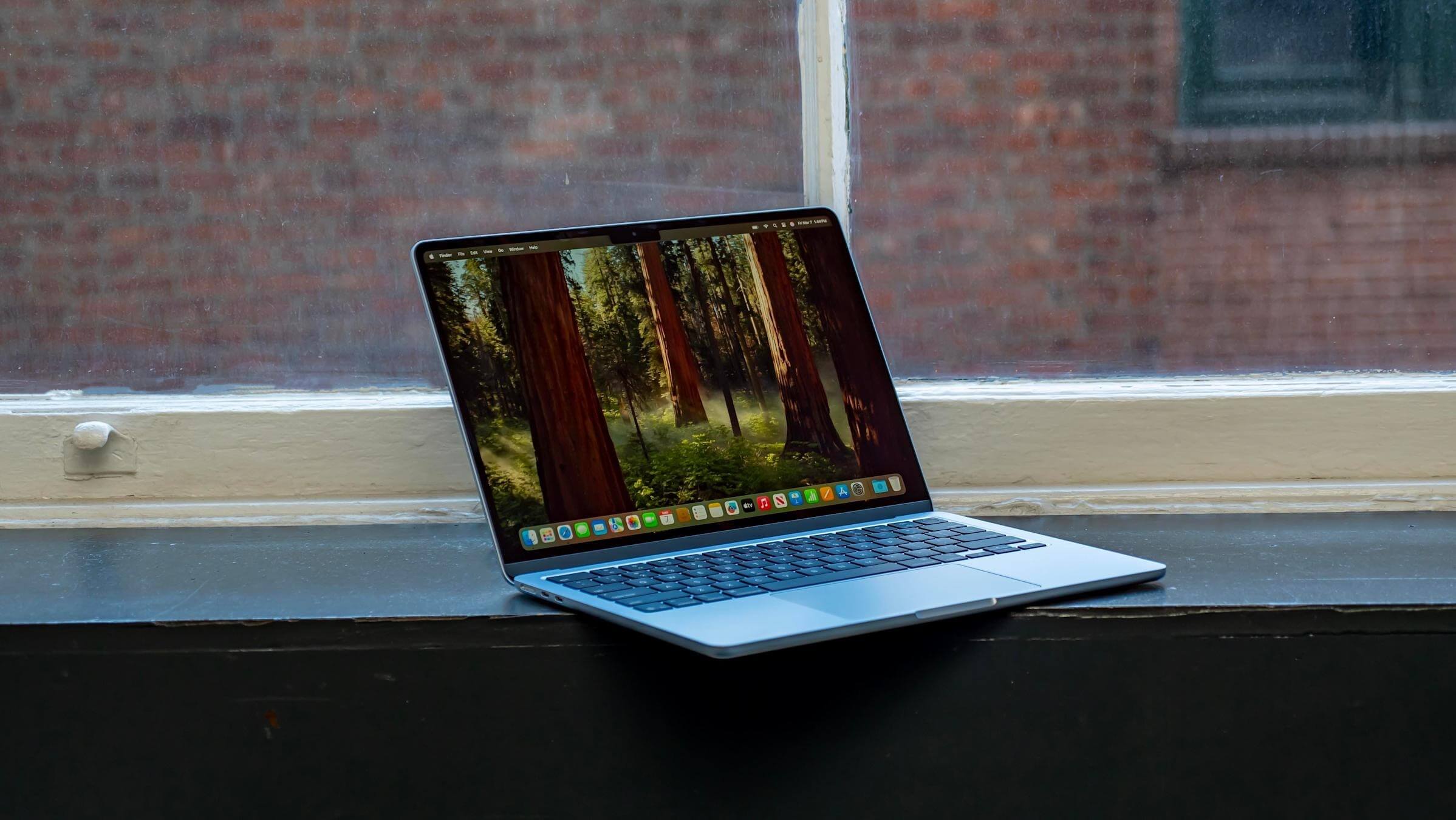
Going Bare (No Film)
Pros
- MacBook Pro’s Liquid Retina XDR display looks best without any overlay—maximum brightness, contrast, and color accuracy.
Cons
- Everyday cleaning tempts you to reach for any tissue or wipe; abrasive fibers can introduce micro-scratches.
- Friends instinctively tap the screen while pointing things out.
- Closing the lid with a cable or adapter left on the keyboard risks gouging the panel.
Cleaning Tips
- Use a microfiber cloth (Apple’s polishing cloth or a reputable third-party option).
- If needed, apply display-safe cleaner to the cloth—not directly on the screen—and wipe gently.
- Avoid corrosive liquids and excessive pressure.
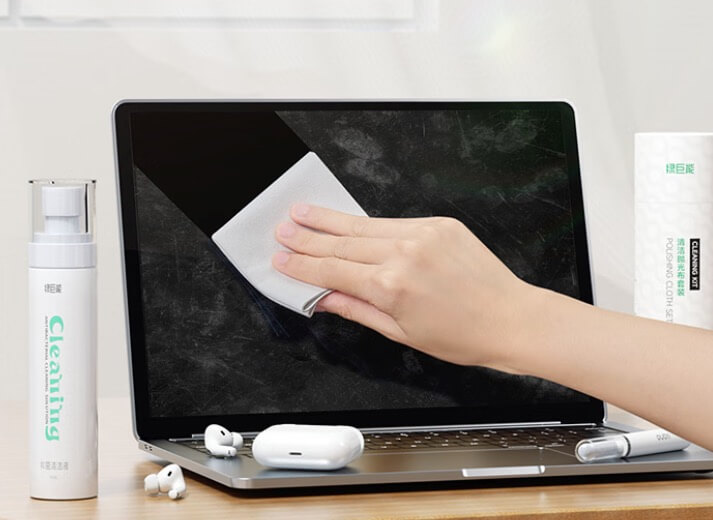
Fun fact: starting with the 2015 12" MacBook, Apple stopped bundling a cloth. Later MacBook Pro (2016) and MacBook Air (2018) models followed suit.
Apple’s full cleaning guidance: https://support.apple.com/zh-cn/103258 (Chinese version)
Using a Screen Protector
Pros
- Guards against accidental touches, cables, or debris that might otherwise scar the coating.
Cons
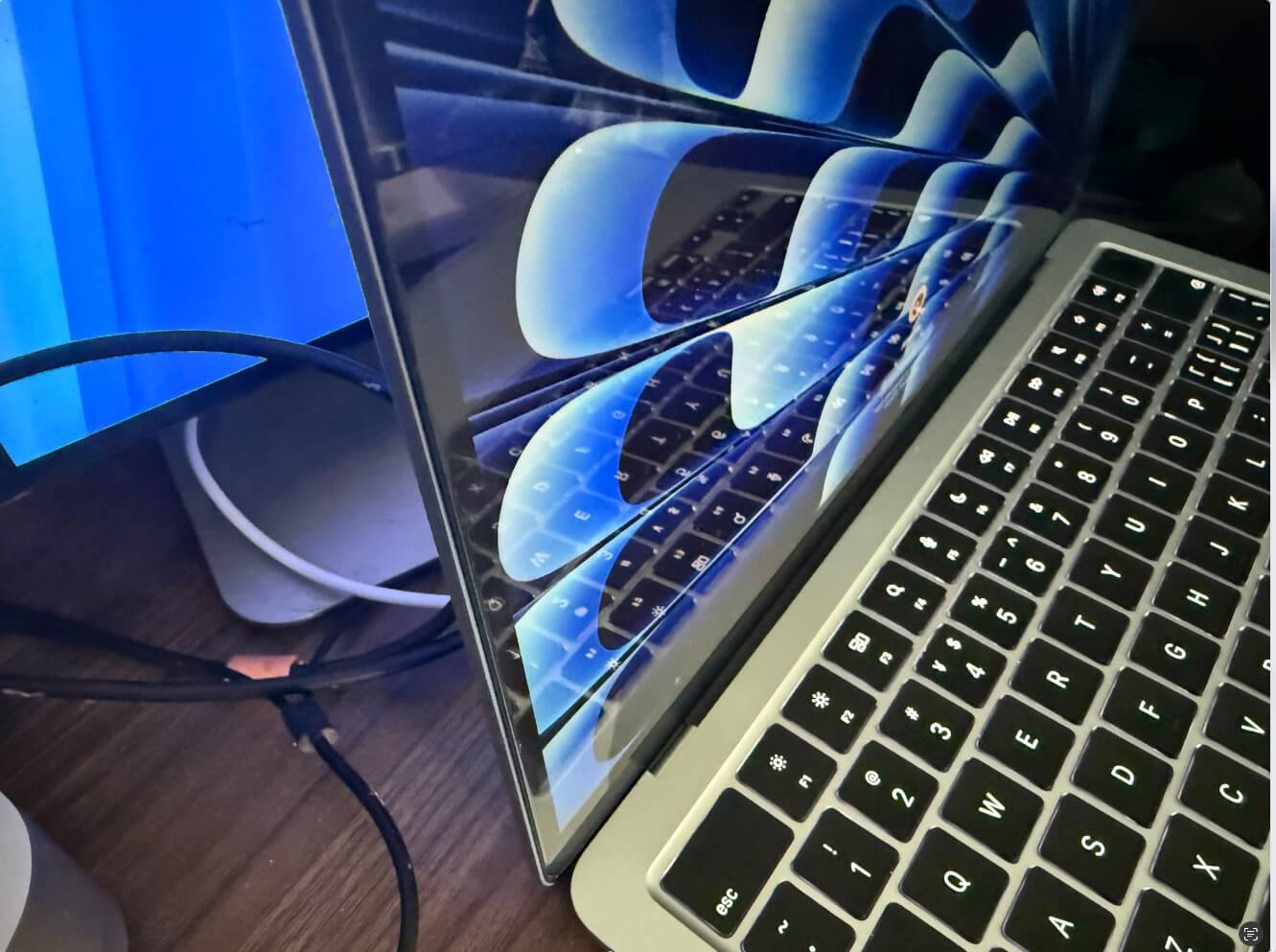
- Adds reflections and dulls the display.
- Thick protectors (especially combined with keyboard covers) can press against the screen, leaving key outlines.
- Removing adhesive films can damage the original coating.
Cleaning With a Protector
Same as above—just don’t press hard enough to crease the film.
So…Should You Use One?
- If you’re meticulous and enjoy the pristine look, skip the film and keep a cleaning kit handy.
- If you’d rather sacrifice a bit of clarity to avoid scratches—or you expect to peel it off later—use a protector.
- If you primarily run the MacBook in clamshell mode with an external display, a protector is unnecessary.
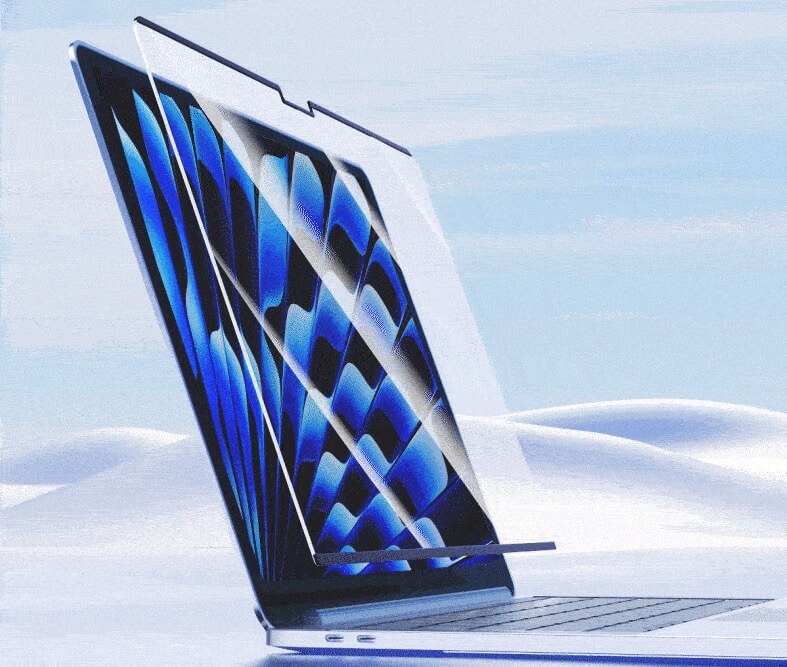
Best compromise: a magnetic protector. It attaches when needed and comes off without adhesive.
Accessories to Avoid ❎
- Hard shell cases—they trap heat and hurt thermals.
- Palm-rest or keyboard skins. Apple explicitly warns against closing the lid with them in place.
“If you use a camera cover, palm rest cover, or keyboard cover, remove it before closing your Mac notebook to avoid damaging the display.” — https://support.apple.com/zh-cn/102051 (Chinese)
My Current Setup
- I’ve been using stick-on glass protectors (e.g., a 58 CNY temper glass model from JD.com) but plan to switch to magnetic ones sold by Apple and third-party vendors.
- No other protective accessories.
Closing Thoughts
If I buy another Mac, I’ll go magnetic to balance aesthetics and protection. Got a better idea? Drop it in the comments.