A big part of the iPhone’s appeal comes from iOS’s friendly interactions. Learning a few tips can boost daily happiness. Here are some to start with—skip any you already know.
1. Find your Wi‑Fi password
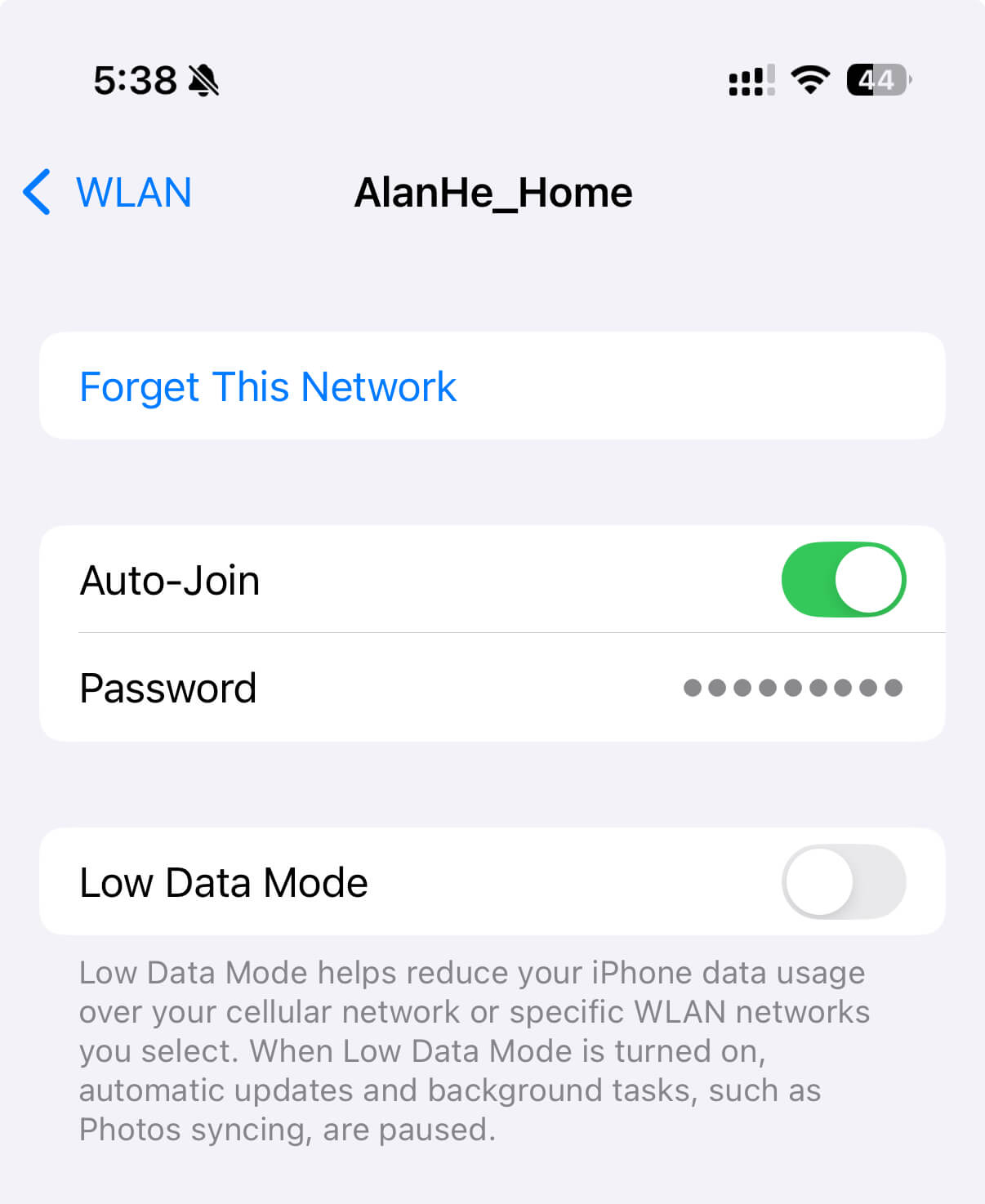
- Go to
Settings>WLAN. - Tap the “Edit” button in the top right.
- Authenticate with Face ID or Touch ID.
- Tap the “i” button next to the Wi‑Fi network you want.
- Tap the password once to reveal it.
For a currently connected network, you can also tap the “i” button next to the name to view the password.
2. Check battery levels of other Apple devices
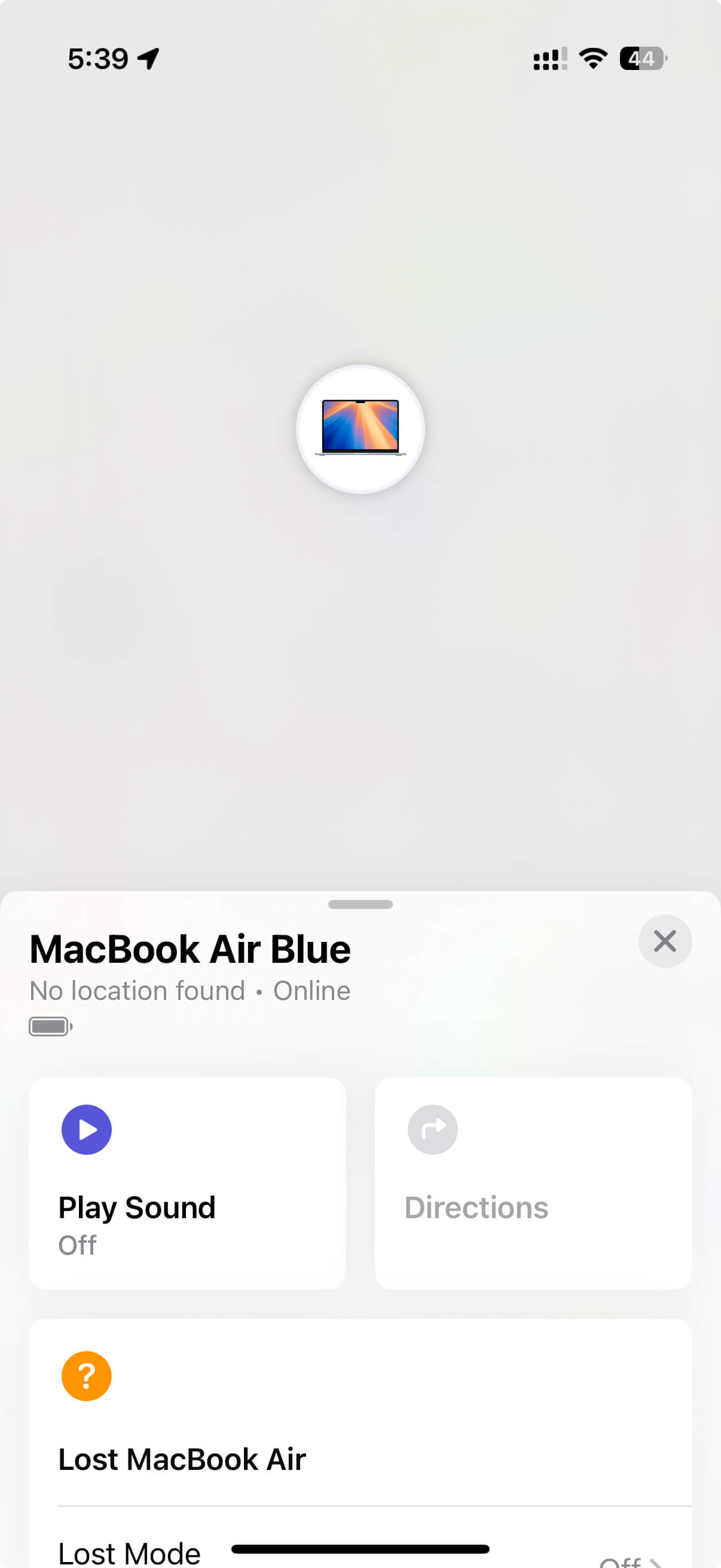
iPhone can show battery status for other Apple devices too.
- Open the “Find My” app.
- Tap the device and the battery status appears on its detail page.
Battery status doesn’t show an exact percentage, but you can infer it from these indicators:
- If fully charged, it shows
green. - If in Low Power Mode, it shows
yellow. - If charging, there’s a lightning icon on the battery.
- If powered off, the battery icon disappears.
To make this work, all devices must be signed in with the same Apple ID.
By the way, if your family’s iPhones are in iCloud Family, you can check their battery status too.
Note: AirTag is special. It usually doesn’t show battery info unless the battery is low.
3. Quickly share a screenshot
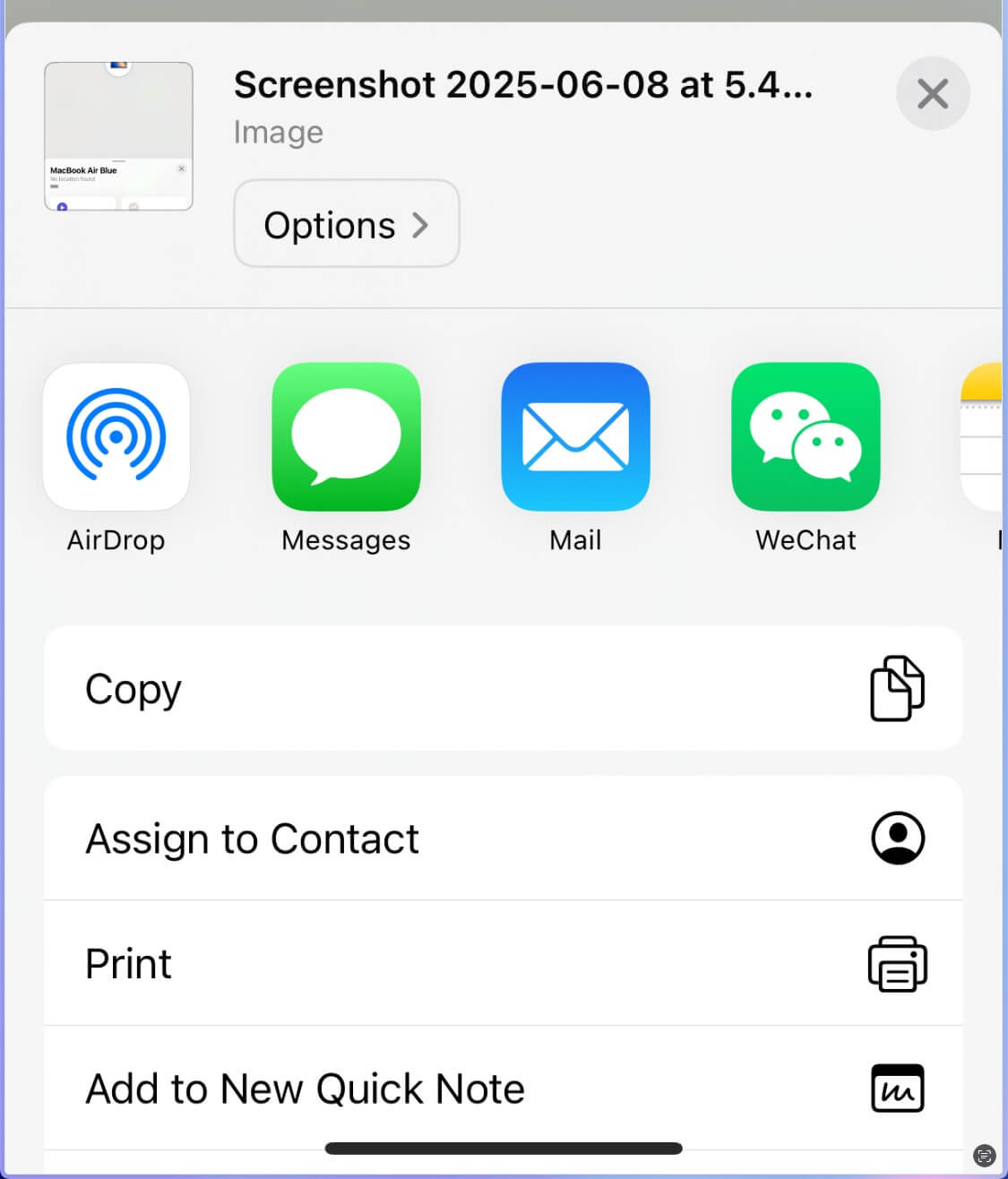
- Take a screenshot.
- Press and hold the preview in the bottom left for
2–3 secondsuntil the share sheet appears. - Tap AirDrop or share to an app.
Note: I didn’t know this for a long time. I used to tap the preview, go to the edit page, and then share—it’s more cumbersome.
4. Preserve camera settings
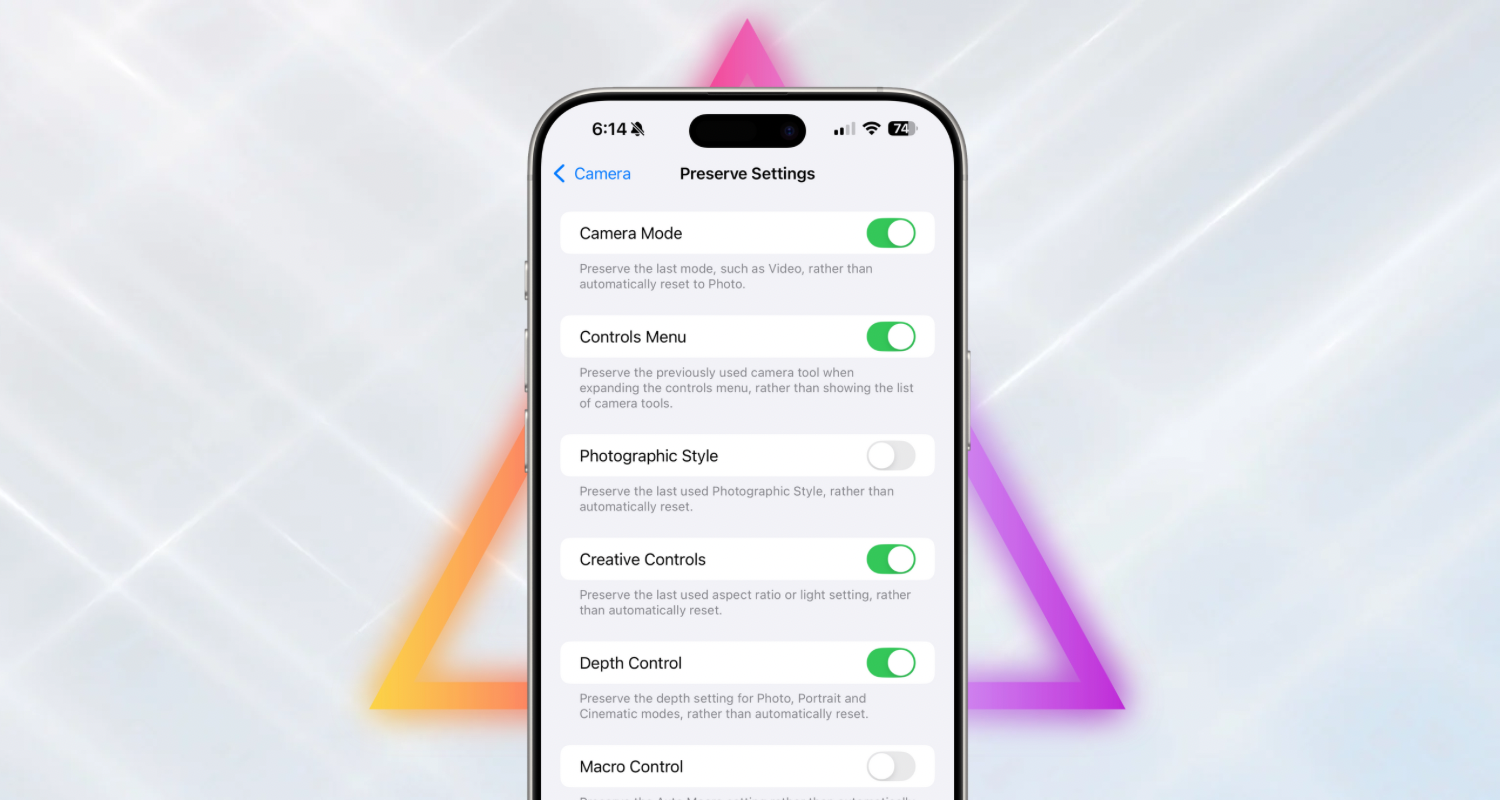
When you open the Camera app, custom settings reset to defaults. You can lock settings to prevent that.
- Go to
Settings>Camera>Preserve Settings. - Toggle the settings you want to keep.
5. Set up a timer
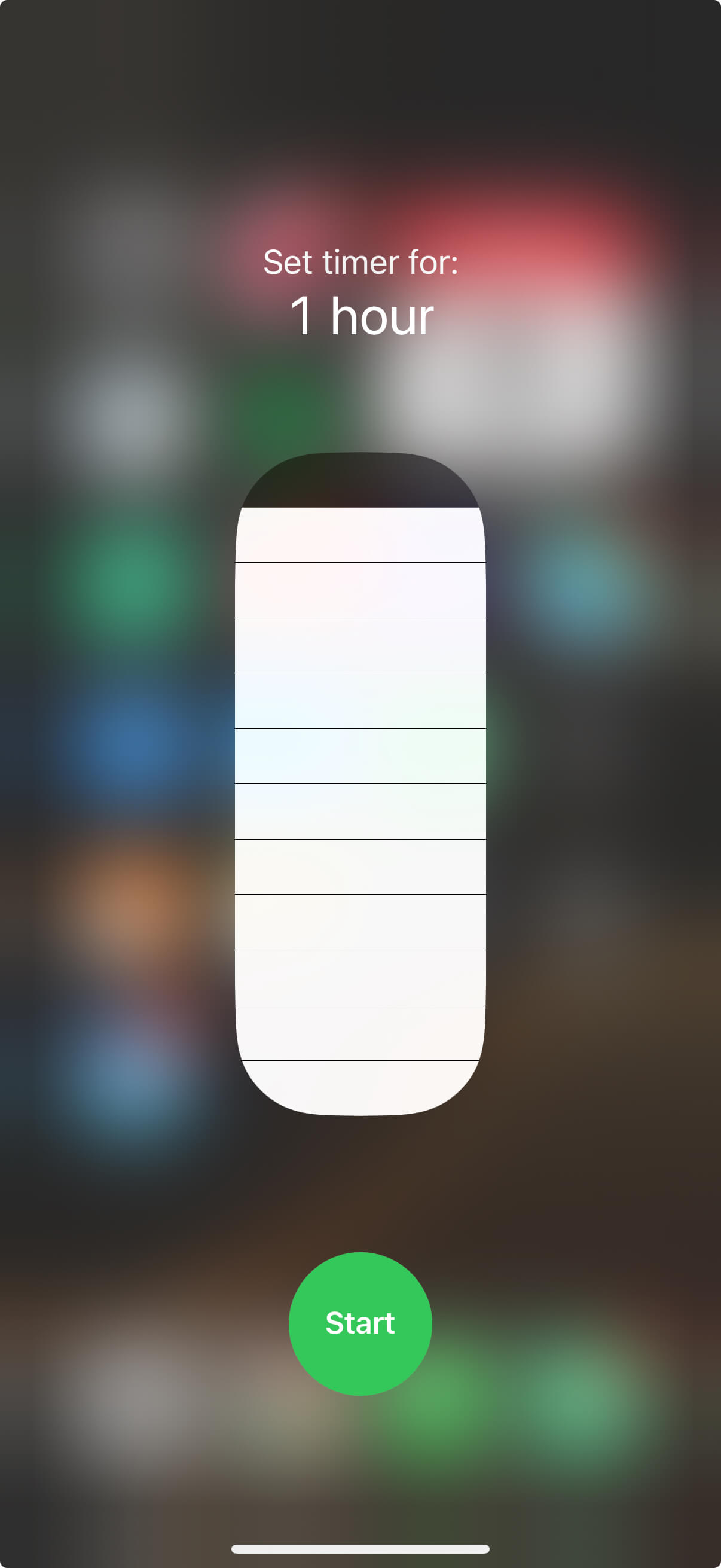
If you use timers often (like when cooking), add a quick shortcut in Control Center.
- Open Control Center.
- Press and hold an empty area to enter edit mode.
- Tap “Add Control” at the bottom center.
- Search for “Timer” and add it.
After adding it, you can quickly start a timer:
- Open Control Center.
- Tap the Timer control to set a duration, or press and hold it to expand, then swipe up or down to adjust.
- Tap “Start.”
Besides this, Siri is great for timers. I usually say, “Hey Siri, set a 5‑minute timer.”
6. Text replacement
If you often type things like ID numbers or addresses, use text replacement to speed up input.
- Go to
Keyboard>Text Replacement. - Tap
+to add a new shortcut.
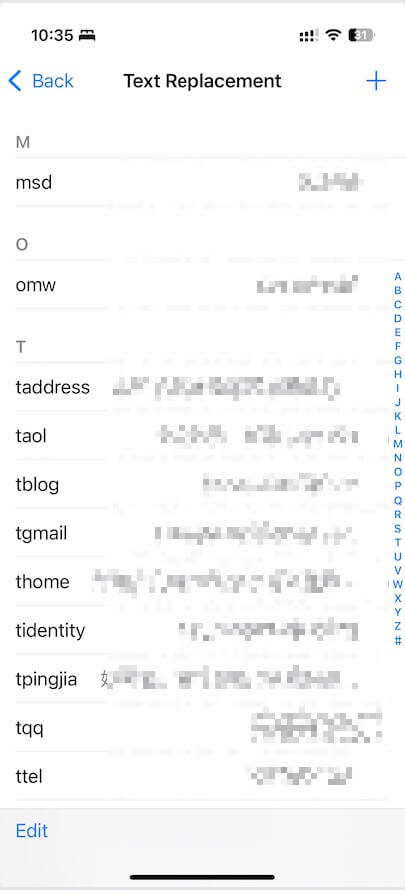
For shortcuts, I recommend starting with t to avoid accidental triggers.
Text replacement syncs via iCloud to all Apple devices, so it works on Mac/iPad too.
7. Scan text
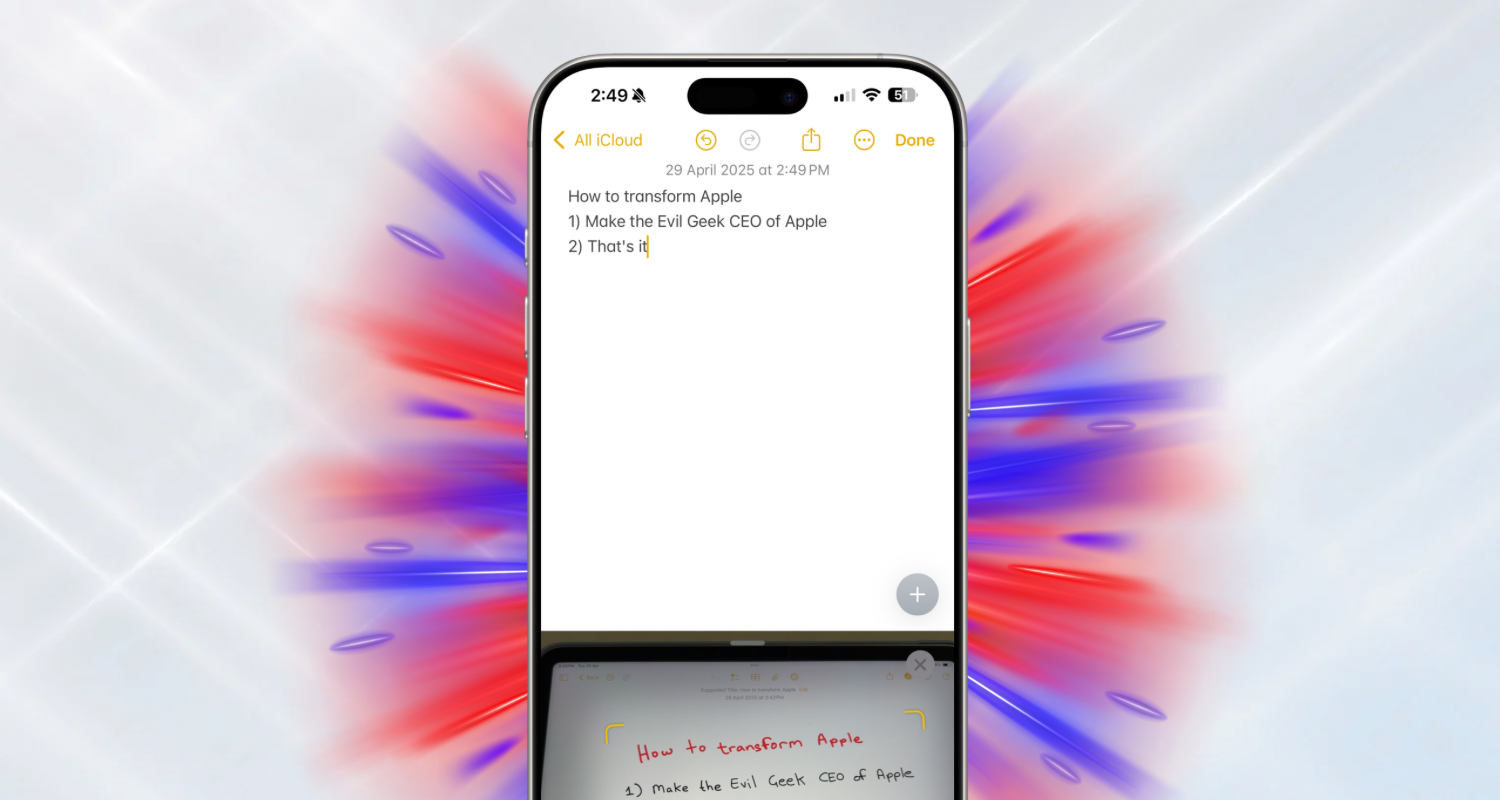
If you want to get text from a paper document into Apple Notes, there’s a method besides taking a photo with OCR.
- Open Notes.
- Create a new note.
- Press and hold in a blank area until the menu appears.
- Choose Attachments > “Scan Text.”
- When the camera opens, frame the page until it appears as text in Notes. You can tap to select the scanned area.
8. Select text directly from photos
Apps like WeChat support extracting text from images, but the best experience is still iOS’s native Photos app.

- Open Photos.
- Choose an image.
- Press and hold the text in the image until copy/selection options appear.
This works on iPhone, Mac, and iPad.
9. Type URLs faster
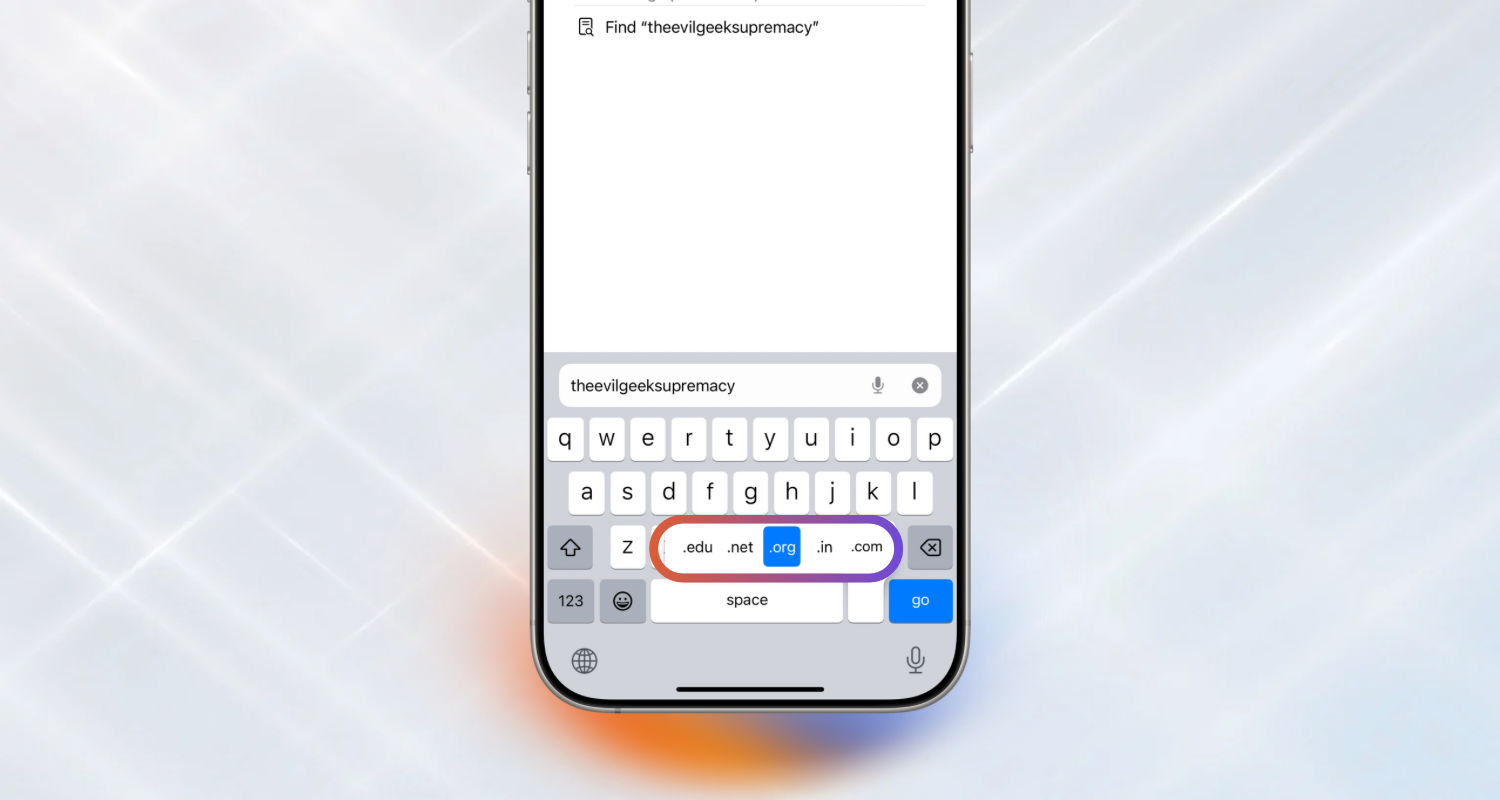
When typing a URL, here’s a shortcut:
- Bring up the keyboard.
- Press and hold the “.” key until the extension pop‑up appears.
- Slide your finger to the option you want.
- Press Return.
There are similar quick inputs, for example long‑pressing . to choose ....
10. Close all tabs
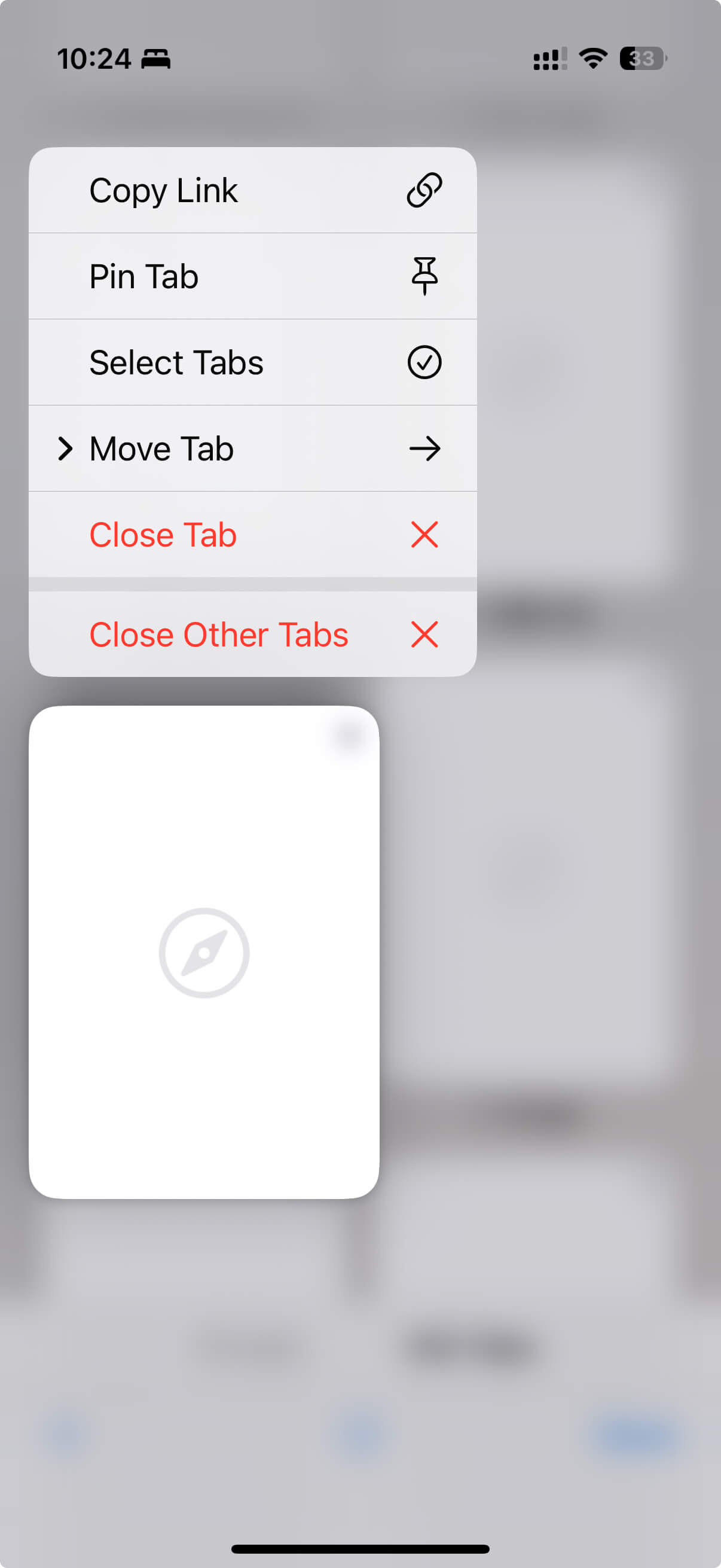
Unlike Chrome and other third‑party browsers, Safari doesn’t offer a direct “Close All Tabs” button, but there’s a workaround:
- In Safari’s tab view, press and hold any tab to show options. One of them is “Close Other Tabs.” Choosing it closes all tabs except the selected one.
- To close the selected tab too, just swipe left on it.
You can also tap “Select Tabs,” then drag to select multiple tabs and close them.
Final Thoughts
iOS, macOS, tvOS, and others have plenty of great tips. Learning them saves a lot of time; this post only scratches the surface. If you have any impressive tips, please share them in the comments.