A big part of the iPhone’s excellence comes from iOS’s friendly interactions. Learning a few tips can boost your daily happiness.
Continuing from the previous post, here are 10 more tips. If you already know some, just skip them.
Note: Most of the screenshots below are from my own device. The system language is English, so some setting names may differ from Chinese systems, but the functions are the same. Thanks for understanding.
1. Message SMS forwarding
For example, if I log in to a PC website and request a verification code, the code arrives on my phone. With SMS forwarding enabled, the PC can also receive the code, which is convenient for filling it in.
How to set it up: Go to Settings > Apps > Messages > Text Message Forwarding, then select the devices that should receive SMS (they must use the same Apple ID).
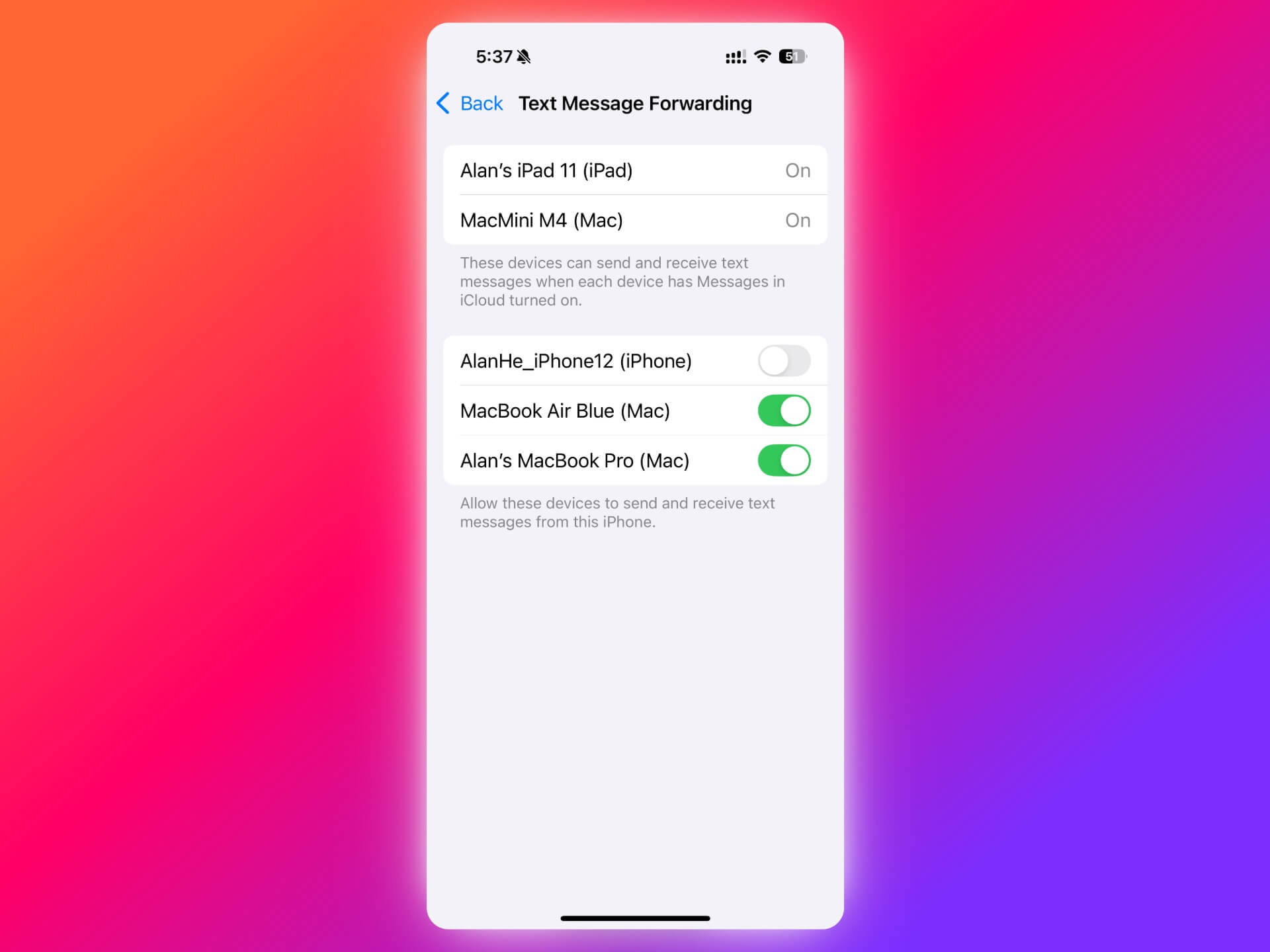
For example, a newly activated device like a MacBook Air will not receive SMS notifications from other devices by default. You need to enable it as shown above.
2. Show the camera grid
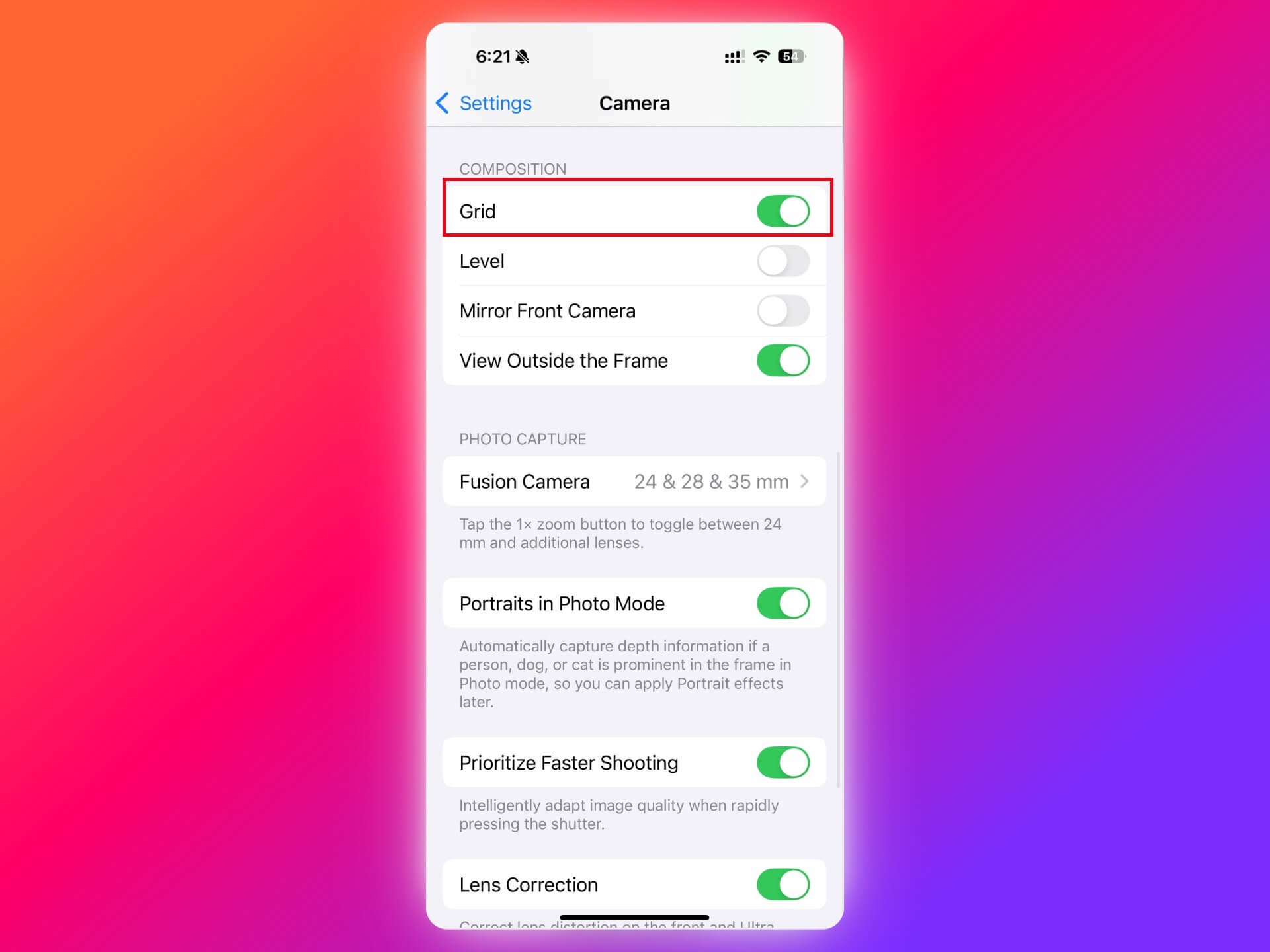
To compose better photos, you can enable the 3x3 grid to help align subjects.
How to enable: Go to Settings > Camera and turn on “Grid.” You’ll then see the grid lines when taking photos.
3. Record screen with microphone audio
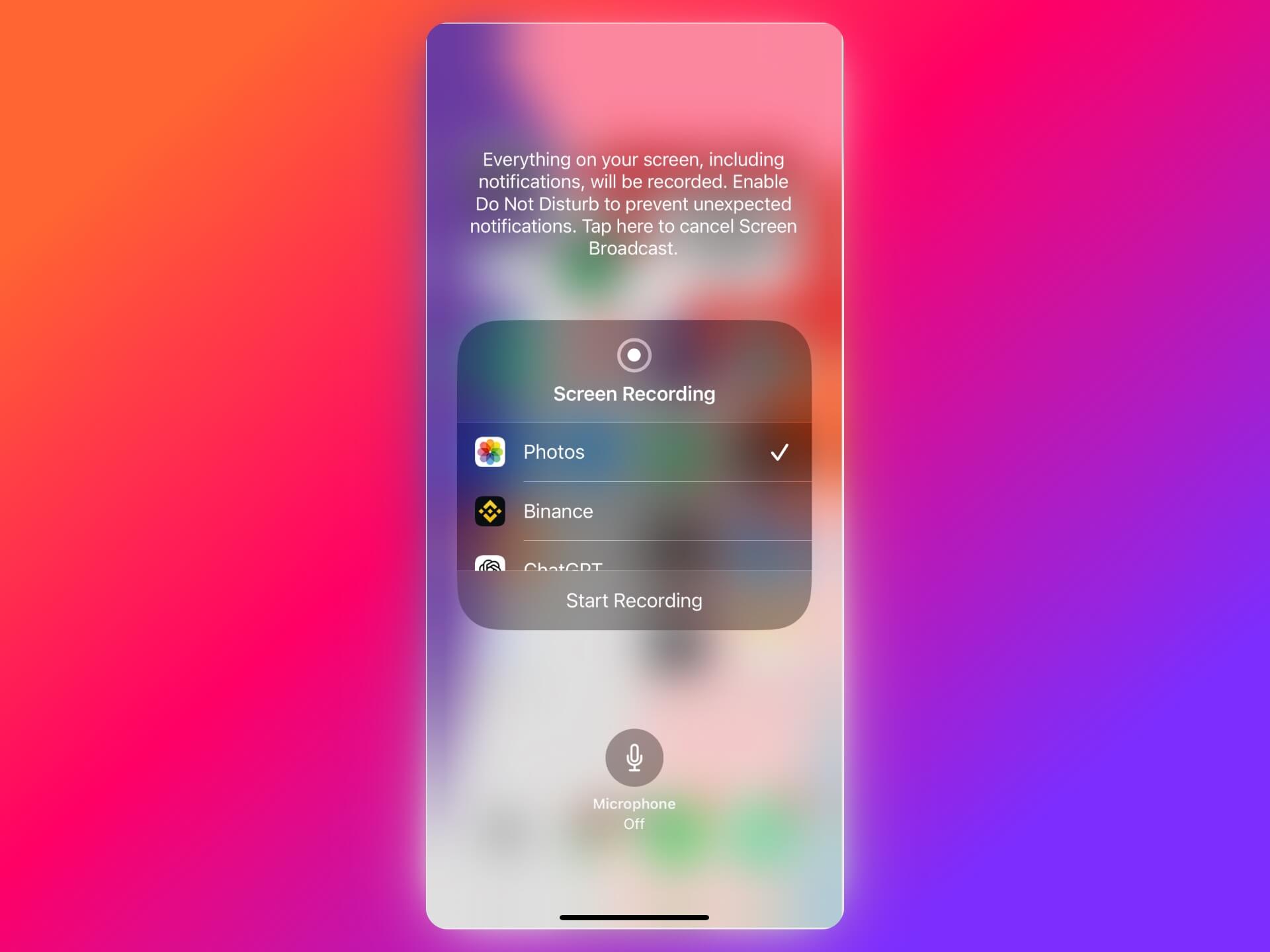
When recording your screen, you can enable the microphone to capture voice narration.
How to use:
- Open Control Center.
Press and hold the record button, then turn on the microphone.- Start recording. The mic icon turns red to indicate it is recording audio.
4. Rename your iPhone hotspot
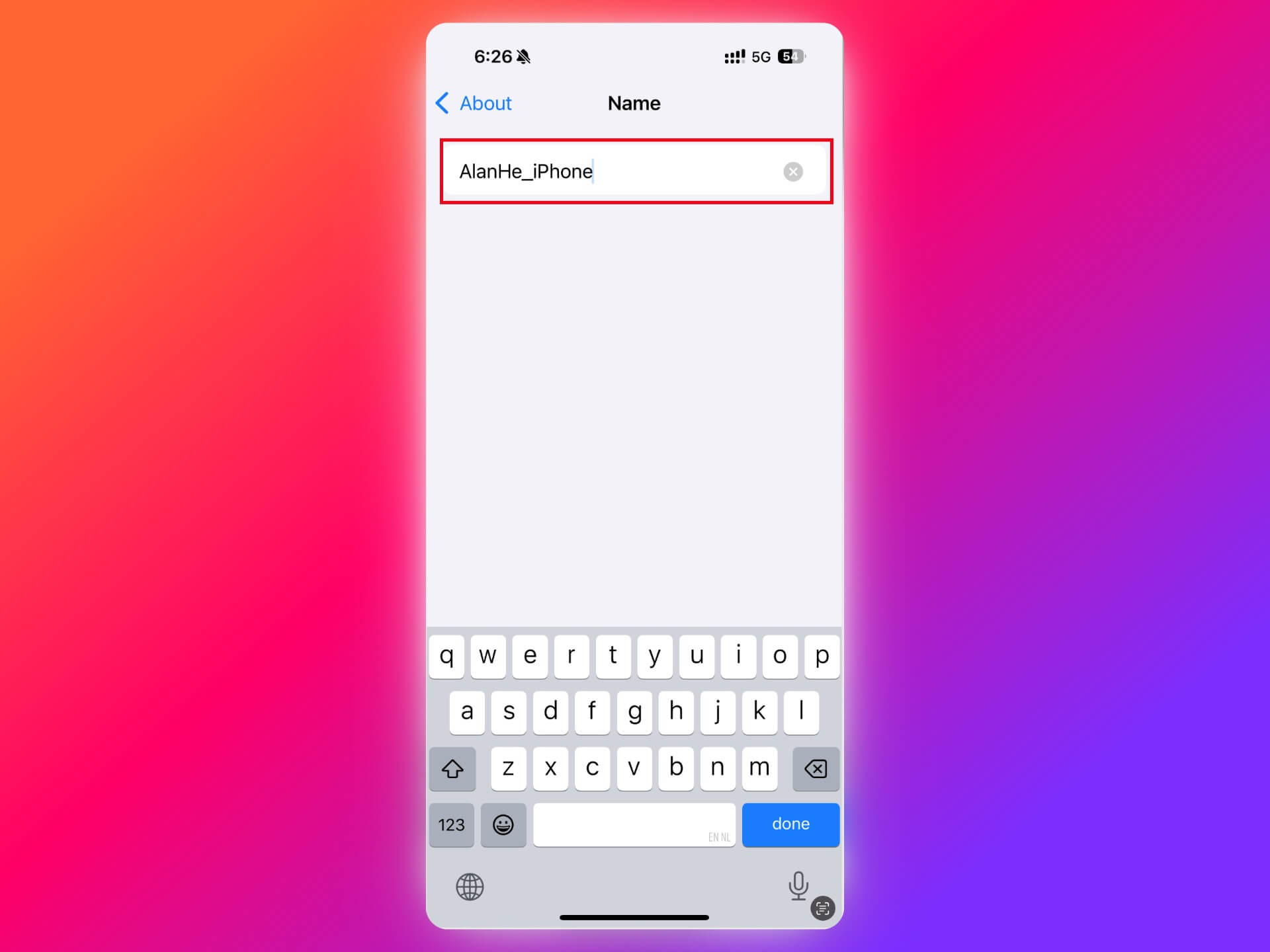
If you use your iPhone as a hotspot and do not like the Wi-Fi name, just rename the device.
How to change: Go to Settings > General > About > Name and edit the device name (Personal Hotspot uses this name).
5. Change the default browser
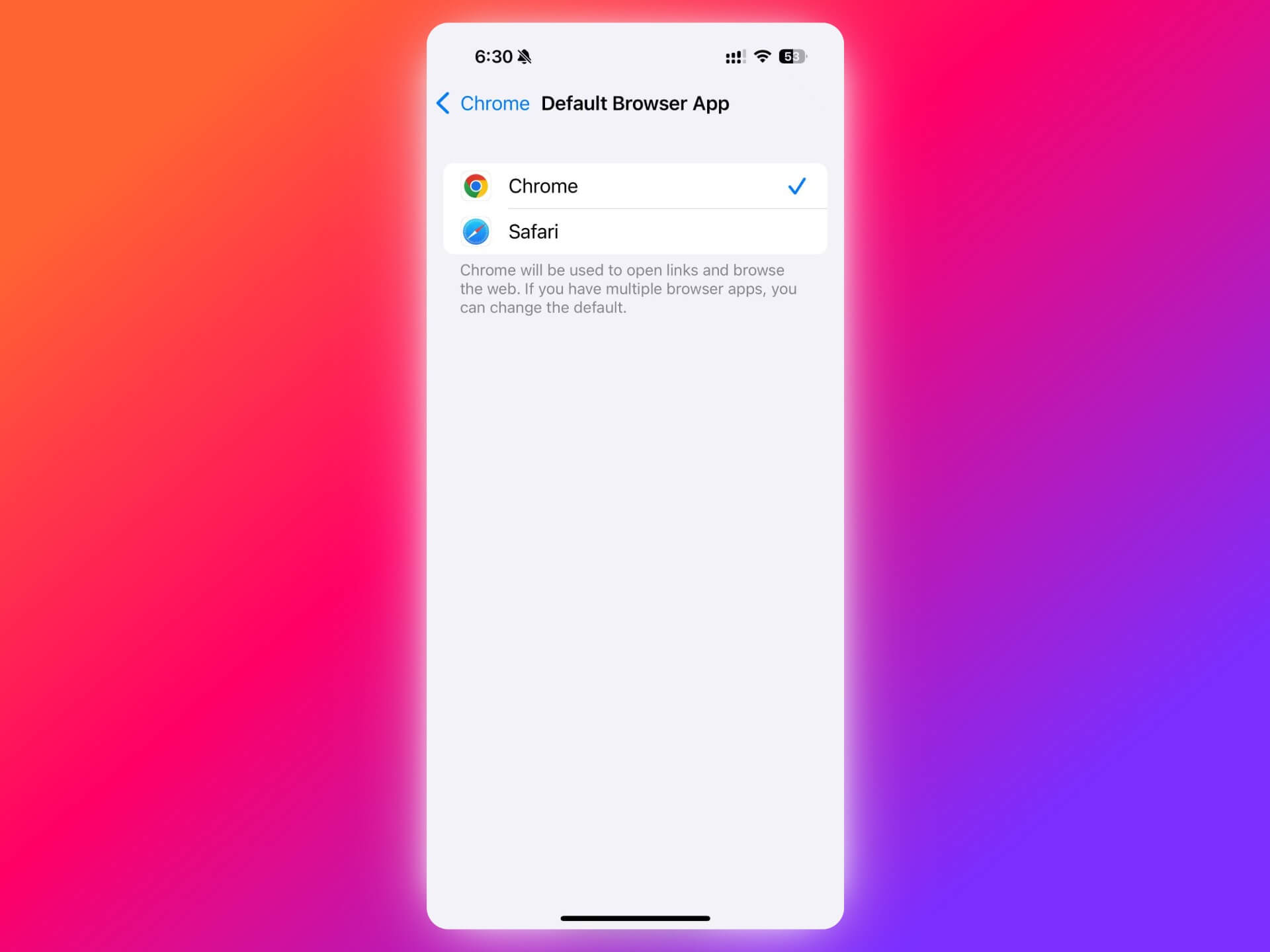
I do not like Safari and prefer Chrome, so I change the default browser to avoid opening links in Safari every time.
How to change: Go to Settings > Chrome/Safari/Default Apps and set your preferred browser.
6. Delete multiple messages quickly
If you want to delete multiple consecutive messages at once, you can use a gesture instead of tapping them one by one. Use two fingers to swipe from left to right to enter selection mode, then use two fingers to swipe up or down to select or deselect consecutive messages. This is much faster.
Note: The same quick-selection gesture works in Mail and Notes as well.

7. Home screen edit: multi-select apps
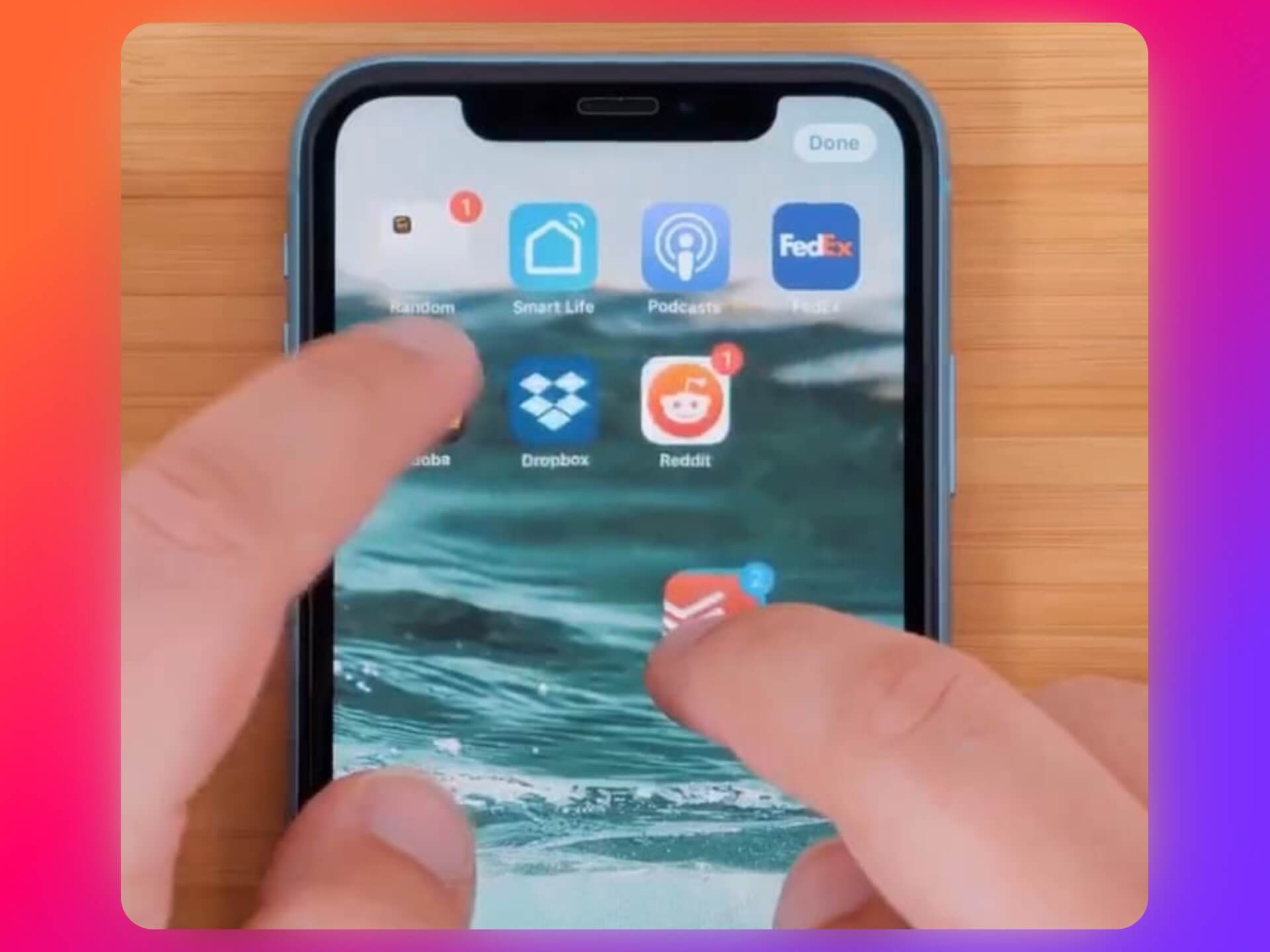
After long-pressing any app icon to enter edit mode, use another finger to tap additional apps. You can then move multiple apps to another page or folder at once, or delete them together, which is much more efficient.
8. Keyboard: caps lock for continuous uppercase
When you need to type uppercase letters continuously, double-tap the Shift key to enable Caps Lock. The Shift key will show an underline; tap again to exit. This is much more convenient than pressing Shift each time.

9. Triple-tap to select a paragraph
You usually double-tap to select a word, but triple-tap selects the entire paragraph. This is especially useful when editing long text and you want to copy a whole paragraph without dragging.

10. Quick scroll to top
In any scrollable view, tap the top of the screen (time, Dynamic Island, etc.) to jump to the top instantly. This is handy when reading long content.
Final Thoughts
- iOS, macOS, tvOS, and others all have many useful tips. Learning them can save a lot of time; this post only scratches the surface.
- If you know any impressive tips, please share them in the comments.