After Cursor went viral, Claude Code quickly followed. I never expected terminal-based coding to be this powerful. I tried it out of curiosity, hit a snag on the very first step, but after a few rounds of tinkering I finally got it working. It is really good. Here are the basics I noted down.
Prerequisites
- Network access: Claude AI is hosted overseas. If you cannot access the web version, Claude Code will face the same issue. Solve connectivity first.
- A virtual card or a non-mainland Apple account: Either one works. The reasons are explained below.
Claude Code Paid Usage
Claude Code is a paid service, with two usage options:
- Claude subscription users, such as Claude Pro or higher Max plans:
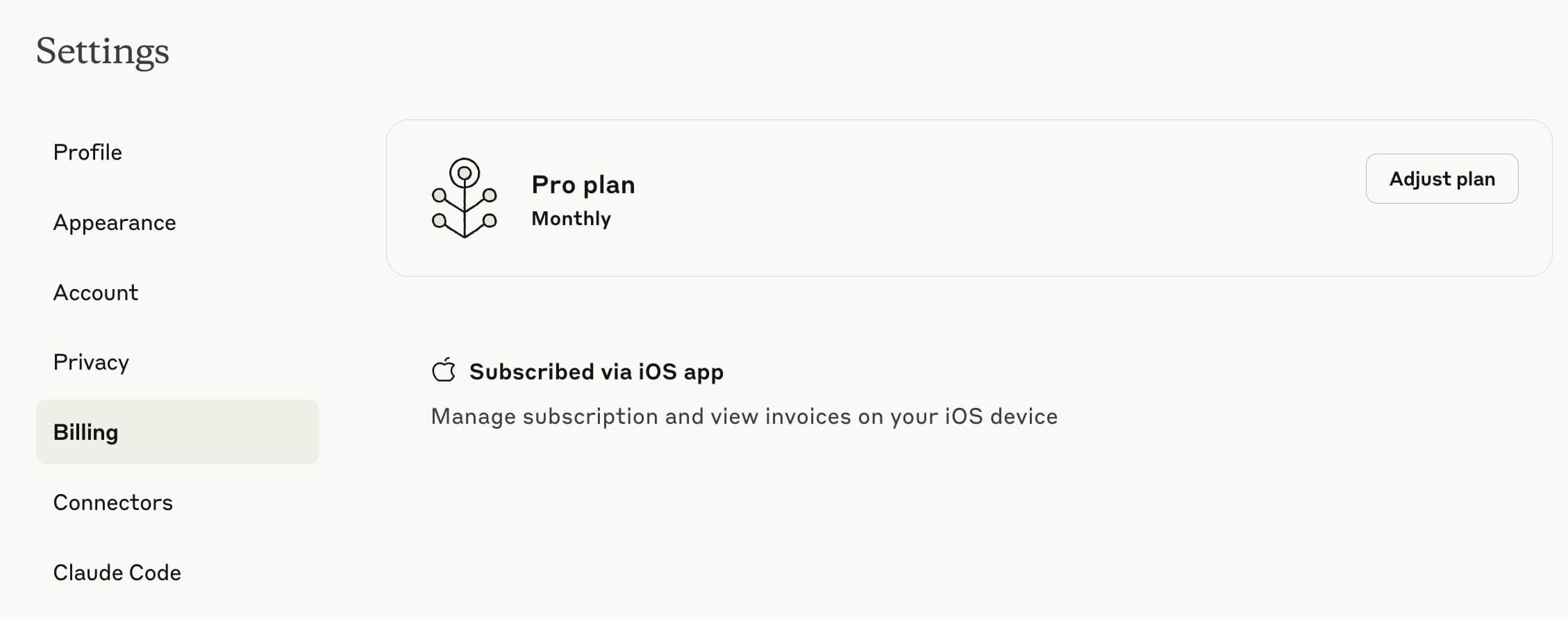
- I find Apple App Store subscription the most convenient. For example, I buy gift cards from Apple’s official website, log into a US Apple account on my iPhone, and subscribe directly. For how to purchase apps in the US region, see US Apple ID Payment Issues.
- Anthropic Console account: bind a credit card for pay-as-you-go billing. If you do not have a US credit card, you will need a virtual card. I used nobepay before, but they stopped accepting new card applications, so I do not recommend it now.
I personally chose the Claude Pro subscription since it includes other features. My GPT subscription happened to expire, so I decided not to renew GPT for now.
Claude Installation
For installation, just run the following command:
curl -fsSL https://claude.ai/install.sh | bash
The npm installation method has been deprecated by the official team and is not recommended.
Terminal Proxy
- PC global proxy
- Shell proxy configuration
Set environment variables in your terminal profile (
~/.bashrcor~/.zshrc) using the following commands:export http_proxy=http://127.0.0.1:6152 export https_proxy=$http_proxy export all_proxy=$http_proxy export HTTPS_PROXY=http://127.0.0.1:6152 alias disproxy='unset http_proxy https_proxy all_proxy'
Usage
Claude usage is fairly simple at the basic level.
- Type
claude. On first use you will go through the login flow. Choose the appropriate method to sign in.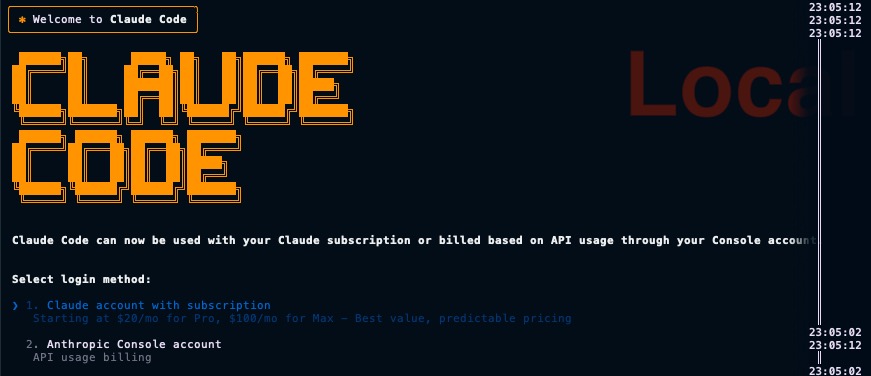
- Enter interactive mode, describe your task, and Claude will identify and apply changes. Repeat as needed.
For advanced usage, refer to the official documentation.
Usage Monitoring
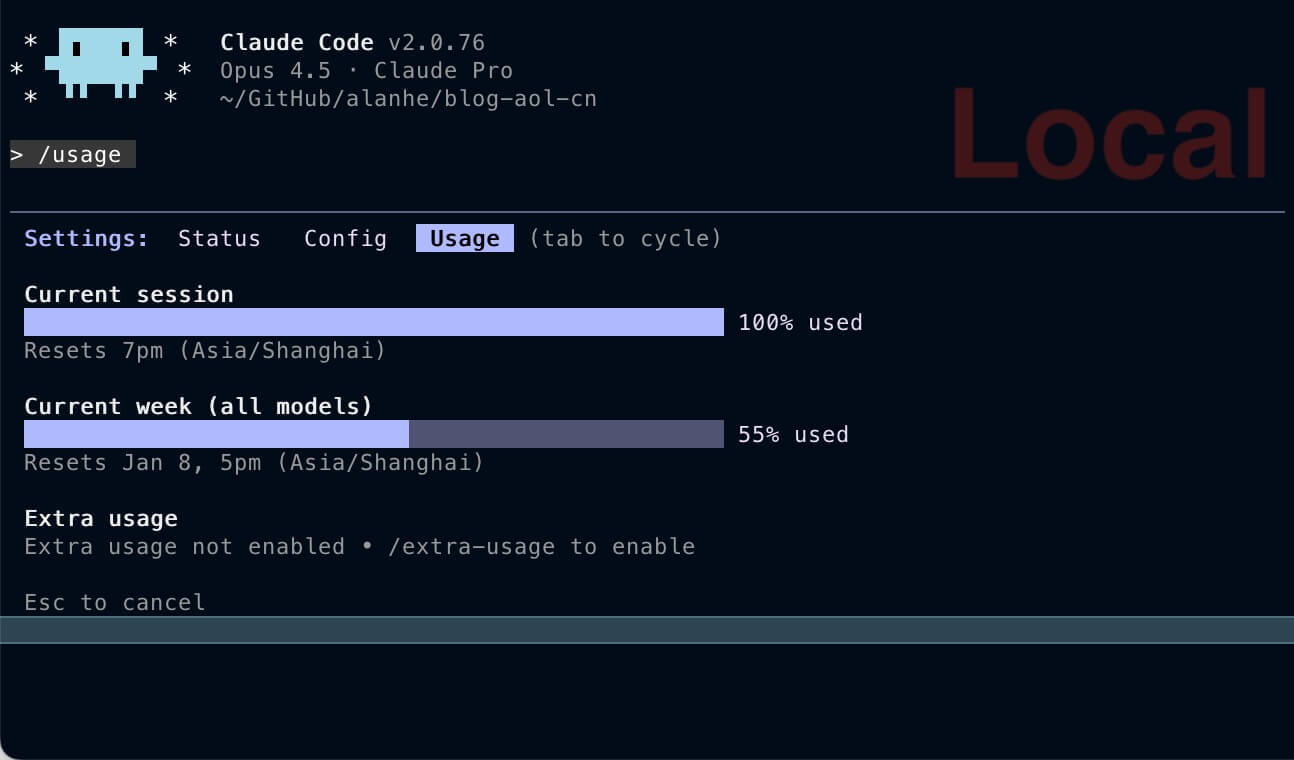
Use /usage, or check it inside the Claude app.
Auto-Accept Edits
Either enable it globally in settings, or pass the parameter when launching from the command line.
claude --permission-mode acceptEdits
Using Agents/Skills
Personally, to save tokens, I do not want to use Claude to translate my blog. I can configure a DeepSeek translation agent so Claude Code will automatically call DeepSeek for translation tasks, which saves tokens. There are a few ways to trigger this.
- Manually: in interactive mode, use
@agentorskills, or explicitly mention the tool in your prompt. - System prompt convention: define that a certain scenario should use the target agent/skill. After configuration, the AI will automatically call the agent/skill during real interactions.
MCP
MCP is for extending CC capabilities.
# List installed MCPs
claude mcp list
Note:
- If an MCP does not work, it is likely not connected. The command above also performs a health check. If it cannot connect, copy the MCP command and run it directly to verify.
- Some MCPs require higher Node versions; consider upgrading Node to the latest.
Permissions
Whether it is MCP or CC itself, permissions are always an issue. Manual approval is safer but tedious. For some operations, you can add a direct allowlist.
# Grant all tool permissions under a specific MCP
"mcp__chrome-devtools"
Bash Command Suggestions
In earlier versions, CC said it removed command completion. I could not get it to work then. In recent versions, history-based command suggestions are supported, and it finally worked for me. Maybe the earlier release only had underlying support, while this time it is truly usable. Note this is history-only. Compared to traditional shells, this is autosuggestion, not autocomplete. True autocomplete should offer multiple options you choose from.
The effect looks like this.

Note
- There will be no suggestions at first. You must type and successfully run a command once for CC to record it, then it can suggest next time.
- CC’s bash history is stored separately and does not use your zsh/bash history file. You can clear the global history and still see suggestions here.
- Because this is autosuggestion, it only suggests one item at a time. As you adjust input, the suggestion changes.
Personally, it would be even better if it could show full command completion suggestions. I hope CC keeps improving.
Solo Mode
For sensitive operations like scp, rm, etc., there will be authorization prompts. You can choose not to be reminded again, which essentially adds that operation to the project allowlist. Other operations will still prompt. If you want a one-time solution, you can grant full permissions to the AI, which is equivalent to Gemini’s Solo mode.
claude --dangerously-skip-permissions
Final Thoughts
The Claude Code experience is quite good right now. While you may run into network issues in China, overall it is very convenient. I hope this guide helps those who need it.